

Search
eForm Field Layout
eForm fields share a Layout section to determine the style and behavior of a field.
In an eForm field is the Layout section.
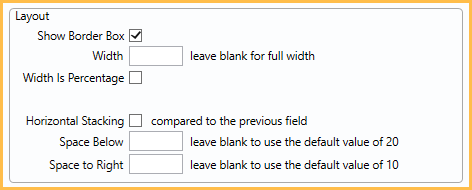
The Layout section is found in the following fields:
Label Position: Only displays for Radio Buttons. Determine where the label displays. Choose from Top, Left, or Right.
- Label Width: Only displays when Left is selected. Enter a width amount.
Show Border Box: Check to include a light gray border around the field.
Width: Width of the text box. When Width Is Percentage is checked, this is the percentage of the width the box will take up.
Width Is Percentage: When checked, affects all fields in the row. Uses a percentage to calculate width in conjunction with other fields on the row. For example, if three fields are on a row, and 100% is entered for each field, each field will take up 33.3% of the row.
Minimum Width: Only displays when Width Is Percentage is checked. Enter the minimum width the field should be, regardless of percentage calculation.
Horizontal Stacking: Check to allow fields to be horizontally placed next to each other. Stacked fields may wrap below depending on the resolution and device size of the eClipboard 25 or eClipboard Web device.
Space Below: The amount of space below each field on a form. Overrides the amount set in eForm Setup and eForm Def Properties.
Space to Right: The amount of space to the right of each field. Overrides the amount set in eForm Setup and eForm Def Properties.
Textbox Wraps: Check to wrap text entered in the field.