

Search
eForm Radio Button Edit
Radio Buttons are for multiple selection fields where only one choice is allowed.
In eForm Def Edit, click Radio Buttons.
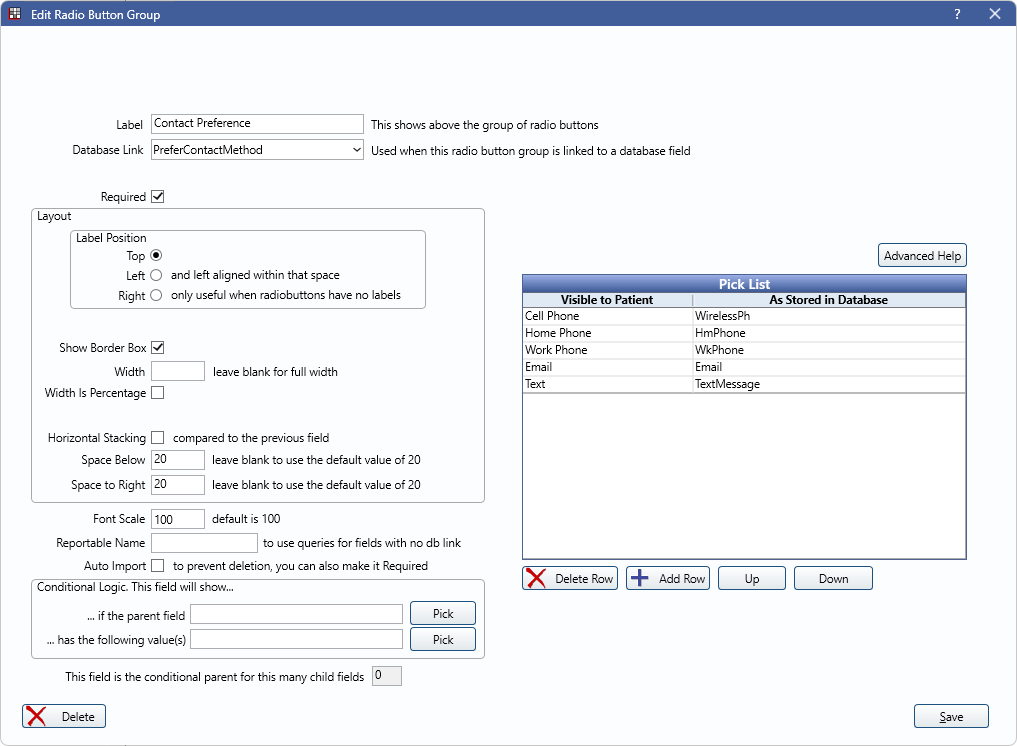
Use Text Box settings to determine how a field behaves and interacts with other fields.
Label: Add a label to describe the data to input. Labels are bold when Labels Bold is checked in eForm Def Properties.
Database Link: Where patient input information imports into the database. If None is selected, data can be entered but cannot be imported. Database links share many of the Sheet CheckBox Field Names from Sheets.
Allergy
Only displays if allergy: is the selected Database Link.
Allergy: Click Change to open the Allergy Master List. Select an allergy that corresponds to the field.
Problem
Only displays if problem: is the selected Database Link.
Problem: Click Change to open the Problem Master List. Select a problem that corresponds to the field.
Additional Details
Required: Check to require this field be entered by the patient.
Layout: This section controls the appearance and behavior of a field. See eForm Field Layout for details.
Font Scale: Font is scaled to the device the eForm is viewed on.
Reportable Name: Give the field a unique name to be reported on in queries. Only used when there is no database link in use.
Auto Import: When checked, these fields are automatically imported to the patient upon submission.
Conditional Logic: This field will show...
- ... if the parent field: Click Pick to open the eForm Field Picker window.
- ... has the following value(s): Click Pick to select a value from the parent field (e.g., checked, unchecked).
Advanced Help: Click to open additional details.
Pick List
The available options for the patient to select in the field.
- Visible to Patient: The name of the radio button that is visible to the patient. Only displays if a database link is selected.
- As Stored in Db: The corresponding database link for the selected value. Only displays if a database link is selected.
- Delete Row: Highlight a row from the list, then click to delete it.
- Add Row: Add a new row for the field.
- Up / Down: Highlight a row and click to rearrange the row in the list.
Language Translation
When editing a translated eForm, the language translation fields display. For more information on editing translations, see eForm Language Translation.