
Help

Search
eForm Label Edit
eForm labels are used to enter headings and generic text.
In eForm Def Edit, click Label.
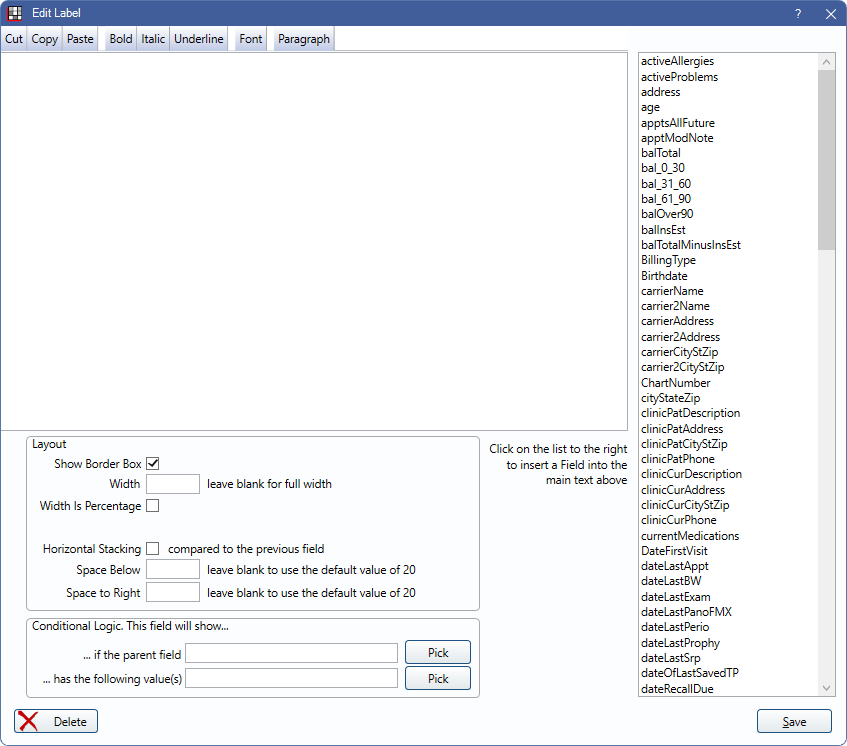
Static text fields (i.e., labels) can be added as needed to an eForm.
Font Options
Highlight text, then apply a font style to it.
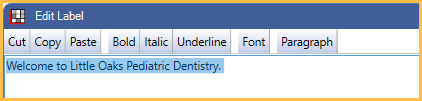
- Cut / Copy / Paste: Highlight text, then click to take an action.
- Bold / Italic / Underline: Highlight text, then click to add the desired style. Alternatively, click a font style prior to entering text.
- Font: Highlight text, then click to add font options.
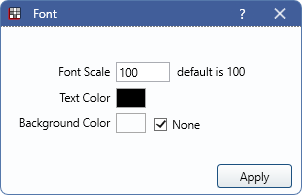
- Font Scale: Font is scaled to the device the eForm is viewed on.
- Text Color: Click to change text color.
- Background Color: Click to change background color, or check None for a transparent background.
- Paragraph: Highlight text, then click to alter paragraph options.
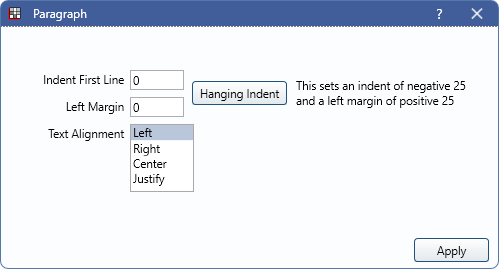
- Indent First Line: The amount of space to indent the first line of the selected paragraph.
- Left Margin: The amount of space in the left margin for the selected paragraph.
- Hanging Indent: Click to automatically set a value of -25 to indent the first line and 25 for the left margin.
- Text Alignment: Select the preferred paragraph alignment.
Static Text Fields
eForms share the same static text fields as Sheets. See Static Text Field Names for a description of available fields.
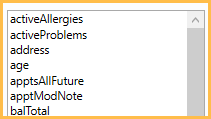
Click a field to add it to the text box.
Layout
The Layout options determine the appearance and behavior of the Label field. See eForm Field Layout for details.
Conditional Logic
This field will show...
- ... if the parent field: Click Pick to open the eForm Field Picker window.
- ... has the following value(s): Click Pick to select a value from the parent field (e.g., checked, unchecked).
Language Translation
When editing a translated eForm, the language translation fields display. For more information on editing language translations, see eForm Language Translation.