

Search
eForm Def Edit
In eForm Def Edit, use the eForm Designer to create or edits eForms.
In eForms, double-click a form to edit.
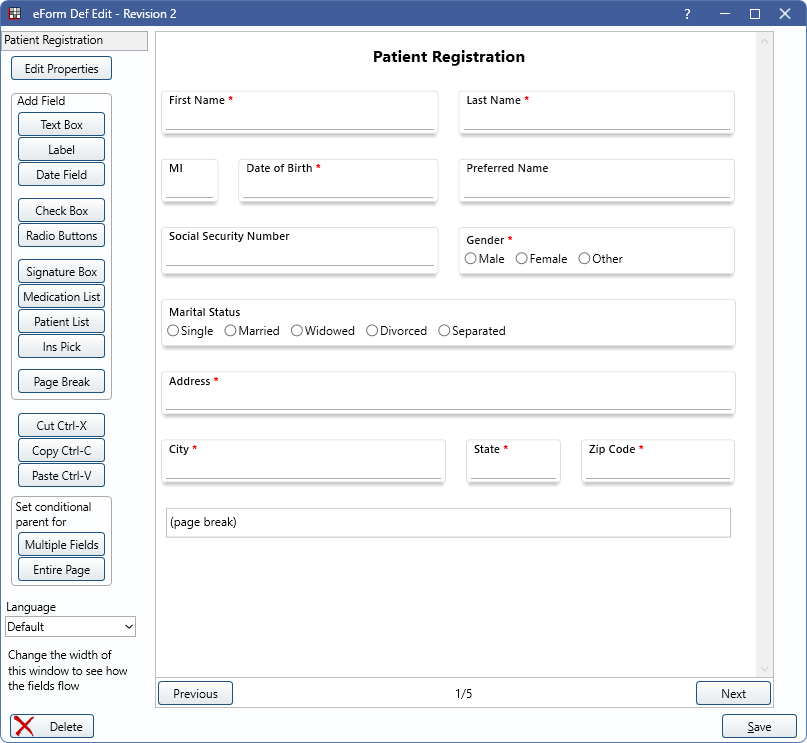
Customize eForms to fit the needs of the practice.
In the title bar of the eForm Def Edit window is the revision number (e.g., Revision 0). When an eForm is in use for a patient, the revision number is used to determine if an updated eForm is needed.
Edit Properties: Click to open eForm Def Properties to edit defaults for the selected eForm.
Add Field: Click a field button to add content to the eForm.
- Text Box: Add a Text Box.
- Label: Add a Label.
- Date Field: Add a Date Field.
- Check Box: Add a Check Box.
- Radio Buttons: Add Radio Buttons.
- Signature Box: Add a Signature Box.
- Medication List: Add the Medication List.
- Patient List: Add an eForm Patient List field.
- Ins Pick: Add an eForm Ins Pick field.
- Page Break: Add a page break.
Use the following buttons or keyboard shortcuts when editing the eForm.
- Cut Ctrl-X: Cut the selected field(s).
- Copy Ctrl-C: Copy the selected field(s).
- Paste Ctrl-V: Paste the selected field(s).
Set conditional parent for
- Multiple Fields: Opens the eForm Field Picker window for the selected field(s).
- Entire Page: Opens the eForm Field Picker window for the current page.
Language: Only displays when Languages are added. Allows eForms to utilize language translations. Select a language to make edits in. When a patient has the selected language as their preferred language, eForms automatically display in that language. When editing a translation, add a translation to each eForm field. See eForm Language Translation.
eForm Designer: This area is where fields and content are added. The look of the designer differs from the final product in eClipboard 25 and eClipboard Web depending on the device size and resolution. Preview eForms on eClipboard 25 devices or on eClipboard Web prior to using with patients.
- Drag fields to the desired place and drop them where an orange area appears.
- Double-click a field to make edits.
- Previous / Next: Click to move between pages.
Click Delete to remove the sheet entirely. Click Save to save changes and close the window.