

Open Dental Cloud Sign In
Users sign into Open Dental Cloud in order to access their instance of Open Dental.
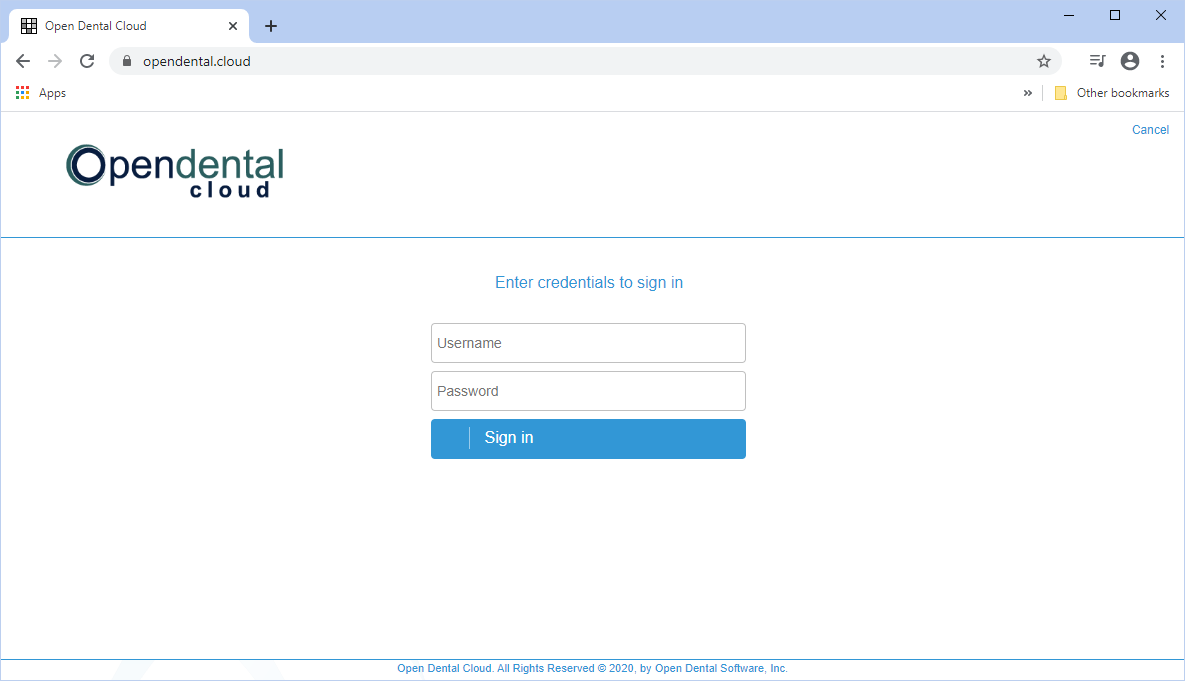
Open Dental HQ determines the best login method for the practice and generates sign-in credentials. Users receive their credentials after signing up for Open Dental Cloud.
The OpenDentalCloudClient is required for users wishing to access third-party integrations from within Open Dental Cloud. It should be installed on each workstation accessing Open Dental Cloud. See Open Dental Cloud Client for installation.
Logging into Open Dental Cloud via URL
- Navigate to the Open Dental Cloud URL provided by Open Dental HQ.
- Enter the office's Open Dental Cloud Username and Password. This is the same for all users accessing the database.
- If a newer version of Open Dental Cloud Client is available, users will be prompted to install it at this time.
- Log onto Open Dental using Open Dental user credentials.
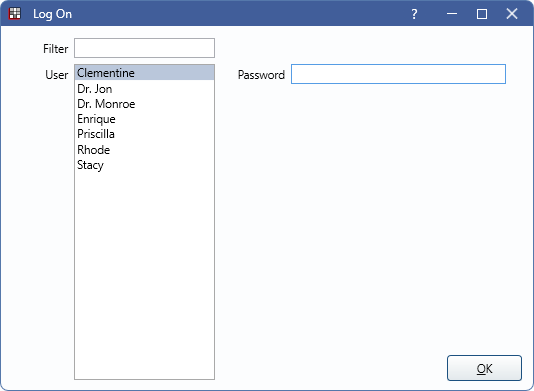 Note: We recommend each User have their own logon credentials in Open Dental (see Security). Strong passwords are turned on by default for Open Dental Cloud users.
Users without the Allow Login From Any Location permission can only log in from workstations with an IP Address listed on the Allowed List.
- If the user does not have the Allow Login From Any Location permission or Security Admin permission, they must have an office administrator add their IP to the list.
- If the user does not have the Allow Login From Any Location permission, but they do have the Security Admin, they will be prompted to add their IP address to the allowed list.
If the allowed number of sessions has been met, another session cannot open and a prompt will appear.
- Click No to close the prompt and close the session.
- Click Yes to close the session of another user.
- Users with the Security Admin also have the option to increase the session limit.
Logging into Open Dental Cloud via WorkSpaces
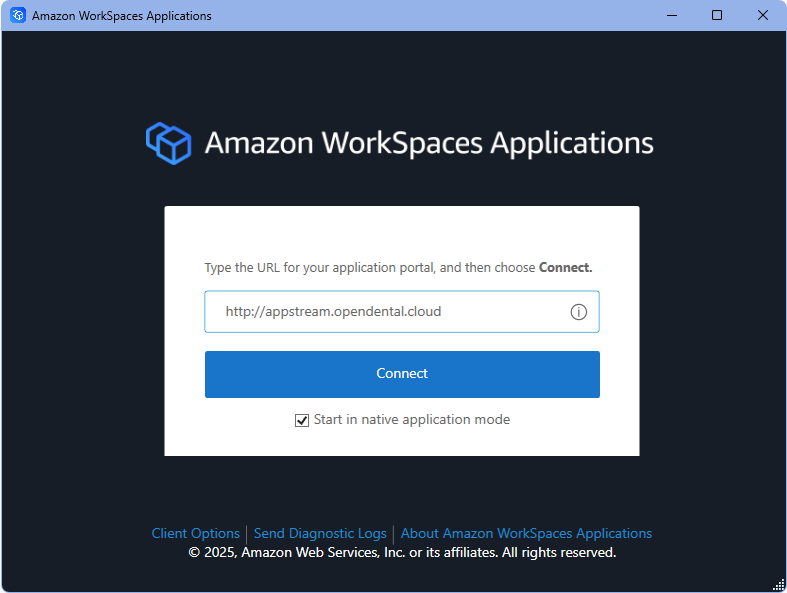
- Launch the Amazon WorkSpaces Applications executable, select whether to Start in native application mode, then click Connect.
- Open Dental sets the URL during the WorkSpaces installation.
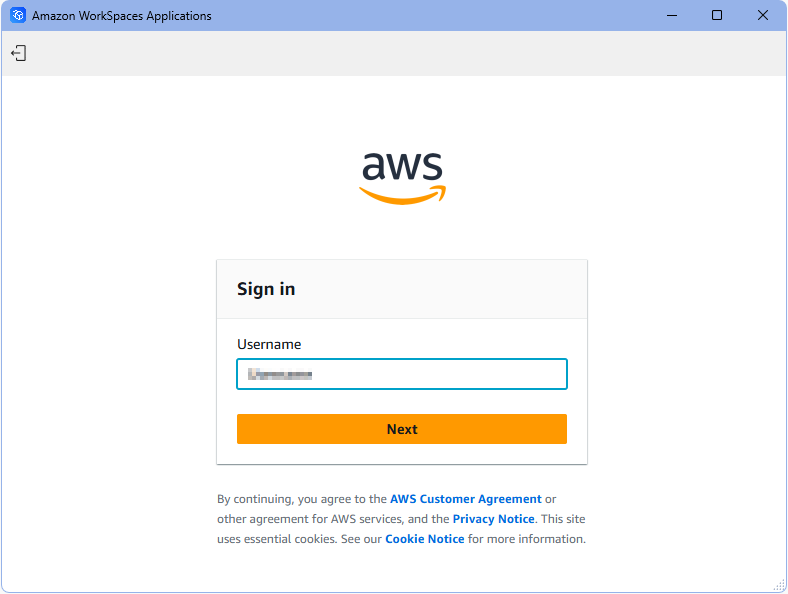
- Sign in using cloud user credentials. Enter username and click Next, then enter password and click Sign In.
- It is required that each user have their own credentials. Users can be created in Cloud Users.
- Users signing in for the first time are prompted to create a password. A verification email is sent to the email listed for that user in Cloud Users. Enter the verification code, then create the new password.
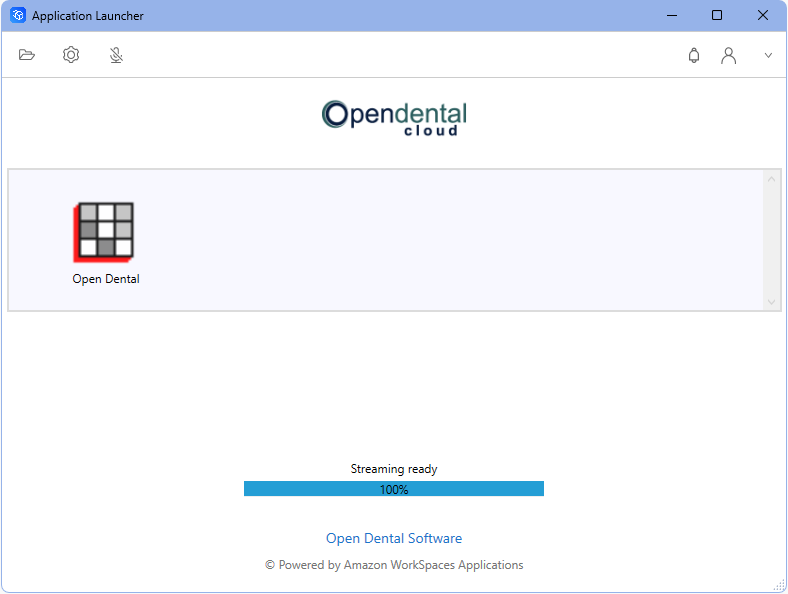
- After signing in, the Application Launcher opens and an instance of Open Dental is launched. Log-in with the user's Open Dental credentials.Note: We recommend each User have their own logon credentials in Open Dental (see Security). Strong passwords are turned on by default for Open Dental Cloud users.
Multiple Instances of Open Dental Cloud
Open Dental Cloud users will have a set number of sessions available to use at one time, based on the office's plan. Additional sessions may be added to the plan as needed.
When using a URLOpen a new browser tab and navigate to the URL to launch additional instances of Open Dental Cloud. Users may open more than one session on the same browser, however it does count as a new session. Users utilizing more than one instance of Open Dental per browser may experience degraded performance based on the number of instances being used simultaneously.
When using WorkSpacesWhen logging into Open Dental via the WorkSpaces executable, opening additional instances is dependent on whether WorkSpaces was launched with Start in native application mode checked.
- Checked (Native Mode): Select the Open Dental icon from the Application Launcher. Additional instances open in a separate window.
- Unchecked (Classic Mode): Select the Launch an application icon, then select Open Dental.
 Additional instances can be selected by clicking the Switch windows icon and selecting the preferred instance.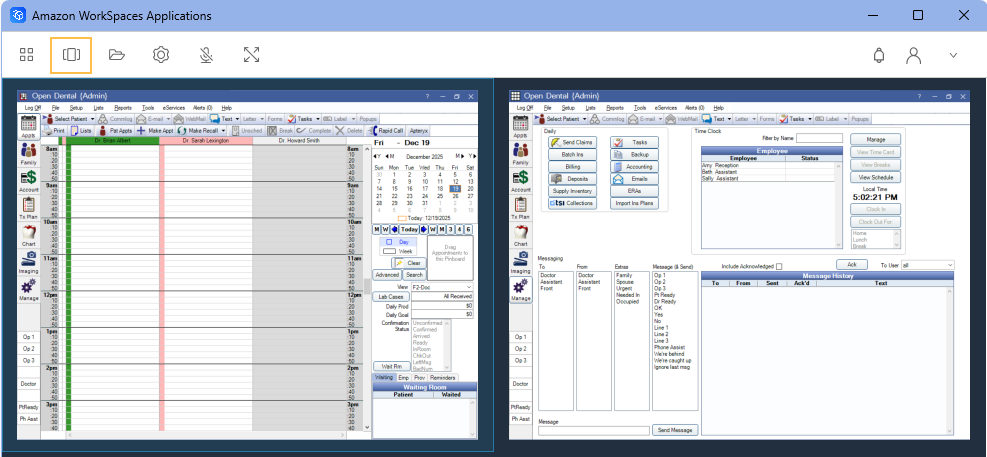
Navigating Windows
When using a URLUse the menu in the bottom left corner of the browser to navigate between open windows within the Open Dental session. 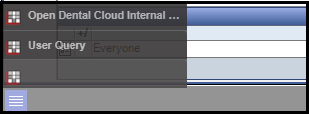
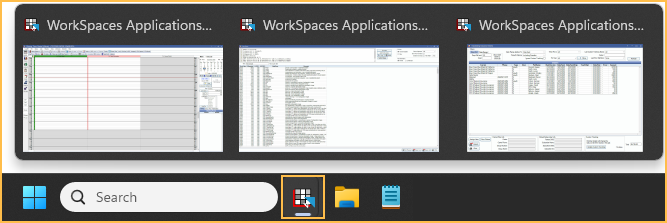
Hover over the WorkSpaces Applications icon in the windows taskbar to navigate between open windows within the Open Dental session.
Logging Off
Because sessions are limited, it is important to log off and close out of Open Dental Cloud.
When using a URLFirst, log off of the Open Dental user, then close Open Dental Cloud.
Close the tab hosting Open Dental Cloud to end the session. The following prompt will appear: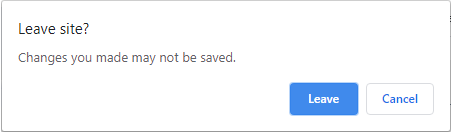
Click Leave to close.
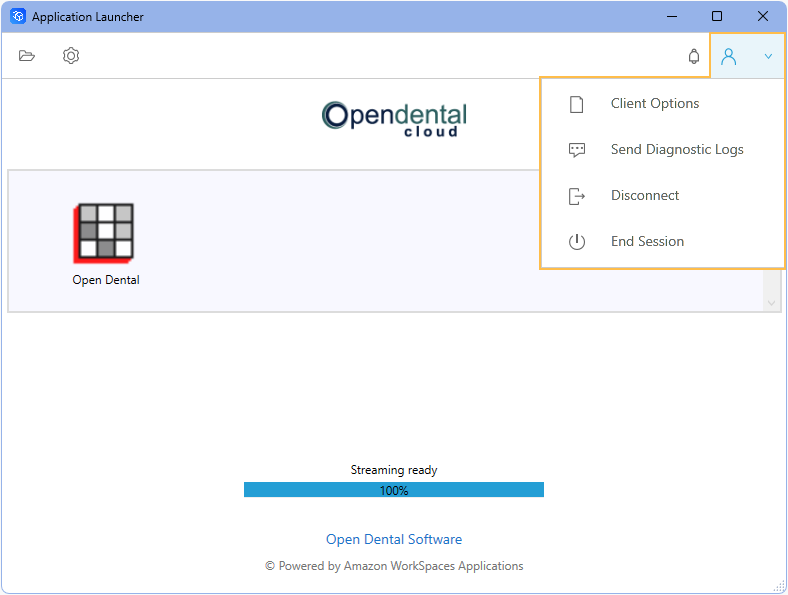
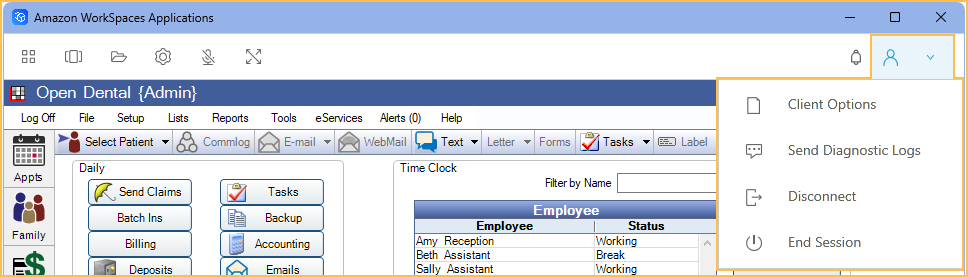
Cloud users can log off via the WorkSpaces executable by selecting the Profiles icon. The Profiles icon location varies depending on whether WorkSpaces was launched with Start in native application mode checked.
Users are given an option to select Disconnect or End Session.
- Disconnect: Ends the instance of Open Dental, but maintains the streaming instance for a short period of time to allow for quicker relaunch.
- End Session:Ends the streaming instance for that connection.
Checked (Native Mode): Click the Profiles icon located in the Application Launcher then click End Session.
Unchecked (Classic Mode): Click the Profiles icon located in the WorkSpaces toolbar then click End Session.
After clicking End Session the following prompt appears: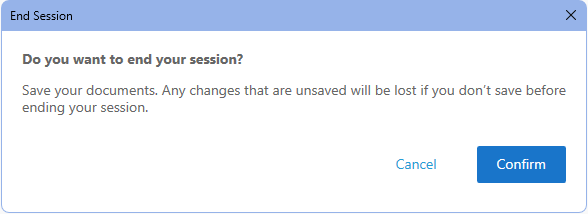
Click Confirm to close.