

Mass Email Mailchimp Setup
When using integrated mass email via Mailchimp, account credentials must be entered.
In eServices Signup Basic, click Mailchimp Setup.
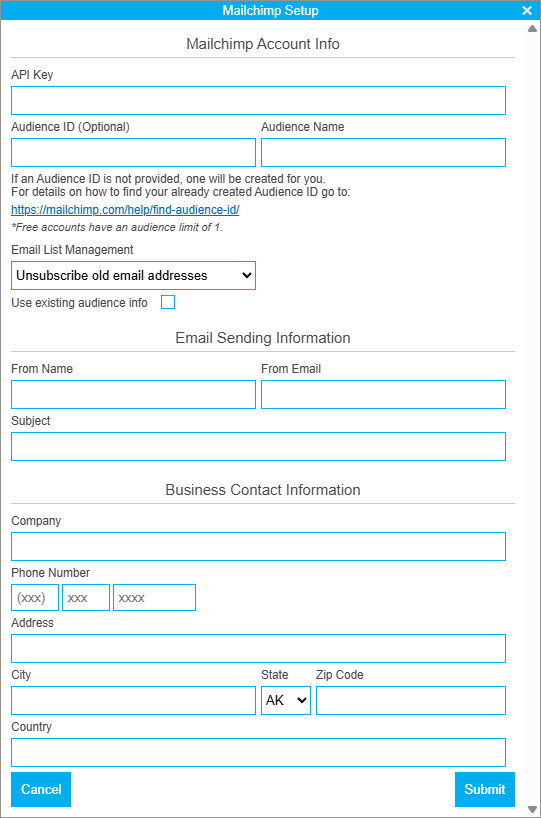
To begin using the mass email integration, first create a Mailchimp account at https://mailchimp.com/. Costs associated with sending emails are billed through Mailchimp based on the selected billing preferences. To utilize the integration through Open Dental, enable the service in the Signup Portal. There is an additional fee billed through Open Dental for integration access. Find the current Mailchimp integration fee in the Fees for Support and Services.
Use the information found in the Mailchimp account to enter the fields in this window.
Mailchimp Account Info
Information to link the existing Mailchimp account to Open Dental.
- API Key: Obtain the API Key from your Mailchimp account and paste it into this field. Mailchimp only allows the API Key to be visible once, so it must be immediately copy/pasted. If the key is lost, generate a new key.
- Audience ID: Required when using a free Mailchimp account. The Audience ID can be found in the Mailchimp Audience Settings.
- Audience Name: Enter the Audience Name, as entered in Mailchimp.
- Email List Management: When uploading a new list of email addresses, determine what to do with email addresses that won't be sent an email.
- Unsubscribe old email addresses: Retains the email address in the audience list.
- Archive old email addresses: Removes the email address from the audience list.
Use existing audience info: Check to use exisiting audience details from Mailchimp. Email Sending Information and Business Contact Information are read-only when this is enabled.
Email Sending Information
Default information used when sending email campaigns with Mailchimp.
If Use existing audience info is disabled, these settings can be edited as needed.
If Use existing audience info is enabled, this information is read-only, and existing details from Mailchimp are used.
- From Name: The default name displays on email campaigns.
- From Email: The default email address to display on email campaigns.
- Subject: The default subject line to use on email campaigns.
Business Contact Information
Displays in the footer of Mailchimp email campaigns.
If Use existing audience info is disabled, these settings can be edited as needed.
If Use existing audience info is enabled, this information is read-only, and existing details from Mailchimp are used.
- Company: Enter the practice name.
- Phone Number: Enter the practice phone number.
- Address / City / State / Zip / Country: Enter the practice address details.