

Trophy Bridge
In the Main Menu, click Setup, Program Links. Double-click Trophy.
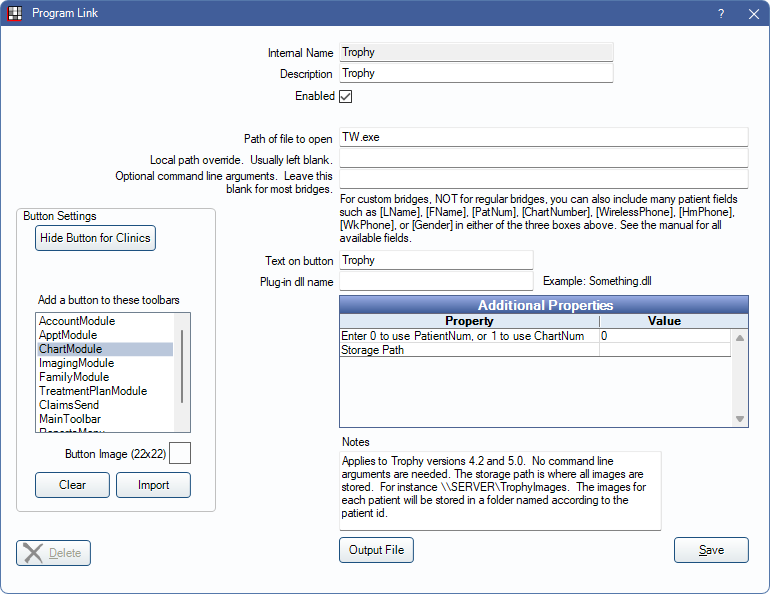
May also be known as Kodak Dental Imaging. Also use this bridge for some Carestream products.
There are two different Trophy bridges available:
- Trophy Simple: Not recommended, however may be used for new installations of Trophy. It always uses the patient ID (PatNum) as the image folder name.
- Trophy Enhanced: Recommended for new installations. Required for existing installations of Trophy. For existing installations, the user must type in the name of the folder in the Edit Patient Information window for each patient.
Bridge Setup
Enter the necessary settings to enable this bridge. Only the fields that need edits are displayed below.
- Enabled: Check to enable this bridge.
- Path of file to open: Verify the path of the program executable.
- Carestream Imaging 8 Users: If setting up a new bridge, this should be left blank. Enter an Optional command line argument instead. If you upgraded to Carestream Imaging 8, but were already using this bridge, see the Technical Details section on this page.
- Optional command line arguments: If the Storage Path is blank, this must be set to -D[PatNum].
- Text on button: The description used on the button as it appears in the toolbar. Defaults to Trophy.
- Additional Properties: Double-click a row to edit properties for the bridge.
- Enter 0 to use Patient Num or 1 to use ChartNum: Enter 0 to use the Chart Number of the patient identifier when launching the bridge.
- Storage Path: Enter the a path to override the default database location set up in Trophy. When blank, the path entered in Trophy is used.
- Button Settings: Determine the visual behavior of the bridge button.
- Hide Button for Clinics: If using clinics, determine which clinics this button should and should not display for.
- Add a button to these toolbars: Determine which toolbars this button should display under. Defaults to ChartModule.
- Button Image: (Optional) Import an image to show on the button (must be exactly 22 x 22 pixels).
Technical Details
Carestream Imaging 8 users
If you are completing initial setup of this bridge for use with Carestream Imaging 8, use the optional command line argument described in the Bridge Setup section above.
If you have were already using this bridge and have upgraded to Carestream Imaging 8, you should continue using the bridge setup you were using before upgrading, unless Carestream converts your imaging.
Simple Bridge
If using the simple bridge, Open Dental always simply uses the Open Dental PatNum to name the Trophy folders. For example, for John Smith, PatNum=123, his images might be found in this folder:
\\SERVER\tw\123
Troubleshooting
If the bridge is not working, troubleshoot it by creating a Windows shortcut. The location / target is the Trophy program itself. For example, C:\Program Files\Trophy\TW.exe. After creating the shortcut, right-click on it and select properties. Edit the target. Add a space after the original target and then -P, then no space, then the full path to a patient folder without any trailing \. Similar to this:
C:\Program Files\Trophy\TW.exe -PF:\tw\G.rvg\G0000001
Close the properties window. Then, click the shortcut to test. This simulates exactly what Open Dental is doing. If this does not work, then Open Dental will not work either. If it does work, change the settings in Open Dental to match.