

Practice Booster Bridge
In the Main Menu, click Setup, Program Links. Double-click on PracticeBooster from practicebooster.com.
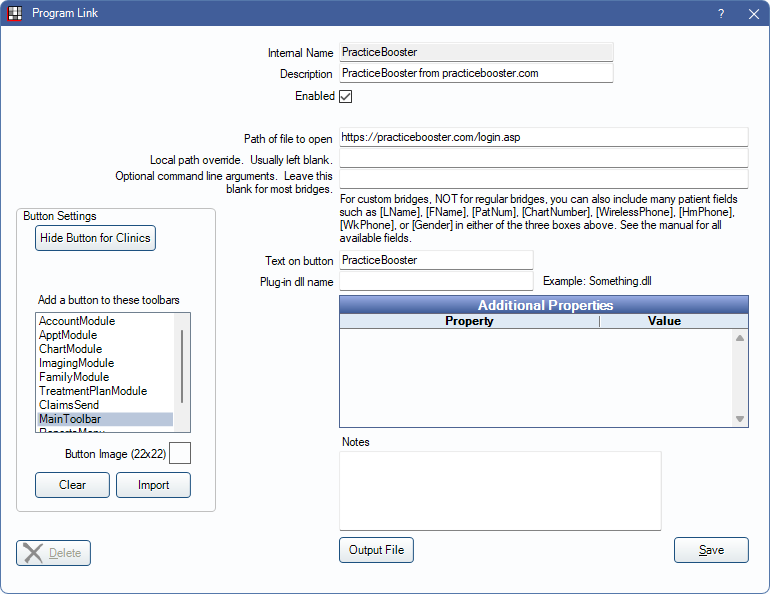
The Practice Booster program link opens the login portal for Practice Booster. Website practicebooster.com
Bridge Setup
Enter the necessary settings to enable this bridge. Only the fields that need edits are listed:
- Enabled: Check to enable this bridge.
- Path of file to open: The location of the program executable. Defaults to https://practicebooster.com/login.asp.
- Text on button: (Optional) Enter the text that is displayed for the bridge button.
- Button Settings: Determine the visual behavior of the bridge button.
- Hide Button for Clinics: If using clinics, determine which clinics this button should and should not display for.
- Add a button to these toolbars: Determine which toolbars this button should display under. Defaults to MainToolbar.
- Button Image: (Optional) Import an image to show on the button (must be exactly 22 x 22 pixels).
Click Save to keep changes.