

DTX Studio Bridge
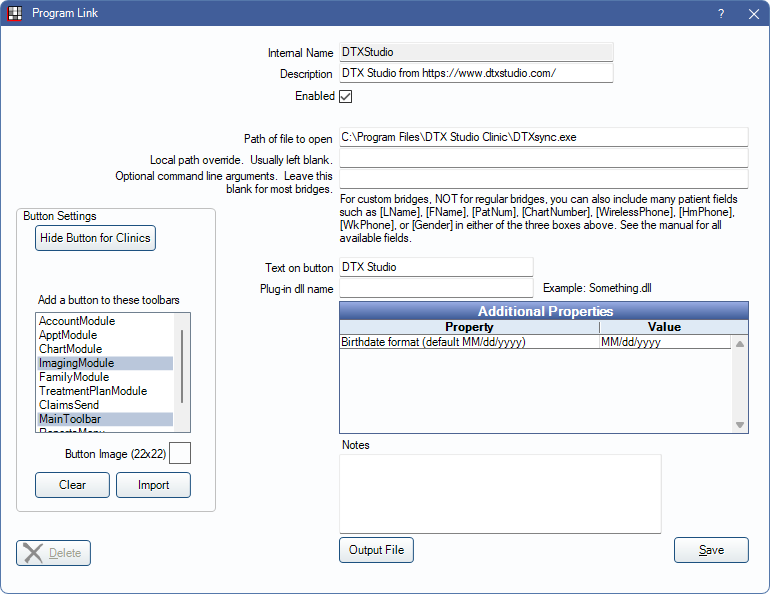
In the Main Menu, click Setup, Program Links. Double-click on DTX Studio from https://www.dtxstudio.com/.
DTX Studio is an imaging software. Website: https://www.dtxstudio.com/en-us
When using DTX Studio, enable this bridge, as well as the DTX Studio Acquire Bridge.
- Use this bridge when simply opening a patient or adding a new patient to DTX Studio.
- Use the DTX Studio Acquire Bridge when opening an existing patient in DTX Studio with the Acquire function ready.
Bridge Setup
Enter the necessary settings to enable this bridge. Only the fields that need edits are included.
- Enabled: Check to enable this bridge.
- Path of file to open: The location of the program executable. Defaults to C:\Program Files\DTX Studio Clinic\DTXsync.exe.
- Text on button: The description used on the button as it appears in the toolbar. Defaults to DTX Studio.
- Additional Properties: Enter any additional properties to launch this bridge accurately.
- Birthdate Format: Defaults to MM/dd/yyyy. Double-click the row to edit the date format (e.g., dd/MM/yyyy) sent to DTXStudio when launching the bridge.
- Button Settings: Determine the visual behavior of the bridge button.
- Hide Button for Clinics: If using clinics, determine which clinics this button should and should not display for.
- Add a button to these toolbars: Determine which toolbars this button should display under. Defaults to ImagingModule and MainToolbar.
- Button Image: (Optional) Import an image to show on the button (must be exactly 22 x 22 pixels).
Click Save to keep changes.