

DentalStudio Bridge
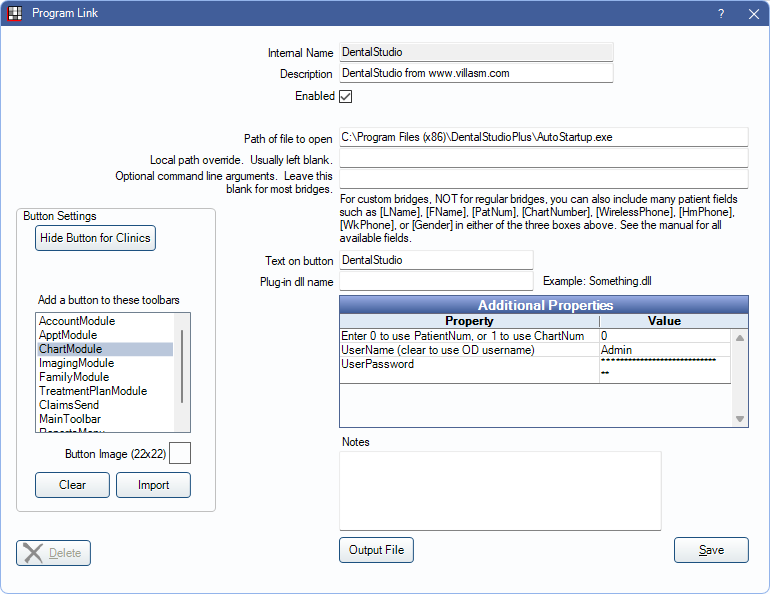
In the Main Menu, click Setup, Program Links. Double-click on DentalStudio.
The DentalStudio bridge is an imaging software. See www.villasm.com.
Bridge Setup
First, contact DentalStudio to get a copy of the file AutoStartup.exe. Copy this file into the DentalStudio program folder.
Enter the necessary settings to enable this bridge. Only the fields that need edits are listed:
- Enabled: Check to enable this bridge.
- Path of file to open: The location of the program executable. Defaults to C:\Program Files (x86)\DentalStudioPlus\AutoStartup.exe
- Additional Properties: Double-click a field to enter necessary additional properties:
- Enter 0 to use PatientNum, or 1 to use ChartNum: Determine which identifier is used to launch the patient in the bridge.
- UserName / UserPassword: Enter the DentalStudio credentials. Cannot contain double quotes.
- Button Settings:Determine the visual behavior of the bridge button.
- Hide Button for Clinics: If using clinics, determine which clinics this button should and should not display for.
- Add a button to these toolbars: Determine which toolbars this button should display under. Defaults to ChartModule.
- Button Image: (Optional) Import an image to show on the button (must be exactly 22 x 22 pixels).
Click Save to keep changes.
Technical Data
The UserName program property can be cleared out, which will cause the logged-in Open Dental user credentials to be sent to DentalStudio instead.