

Search
Exam Sheet Layout
Exam Sheets can be customized to meet the needs of the practice.
In Sheets, double-click on a custom sheet with the type of ExamSheet.
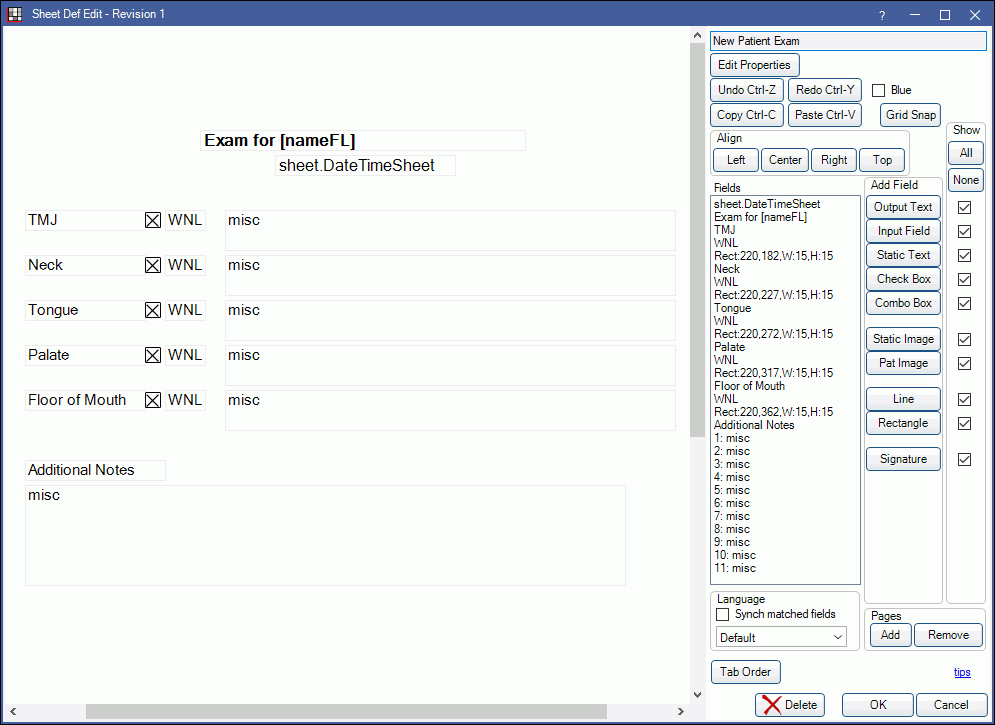
Alternatively, in Sheets:
- Click New and choose ExamSheet as the Sheet Type to create a new exam sheet from blank.
- Select an existing Custom ExamSheet sheet and click Duplicate to create a copy of an existing exam sheet.
- Select the existing Internal ExamSheet sheet and click Copy to create a copy of the default exam sheet that can be edited.
To generate exam sheets for a patient, see Exam Sheet.
Also see: Sheet Def Properties and Sheet Field Types.
To customize a ExamSheet sheet type, see Edit Sheet Def.
Using Exam Sheet Fields in Static Text
Information from an Exam Sheet can be populated on other Sheet Types (Referral Letters, Referral Slips, and Patient Letters) as Static Text. This includes the following:
- misc Checkboxes
- misc Input Fields
- Combo Boxes
- Output Text Fields
To set up a field for use as Static Text:
- In the Sheet Def Edit window, click Edit Properties
- Enable Use Mobile Layout and click Save
- Choose the field to edit:
- To edit an existing field, double-click the field.
- To add a new field, choose the applicable button in the Add Field area.
- Input the information to populate into the Static Text Field
- For misc Checkboxes, enter a Mobile Item Caption and Reportable Name.
- For other fields, enter a Mobile Caption and Reportable Name.
- Complete remaining field setup as normal.
- Click Save.
Information from the applicable Mobile Item Caption or Mobile Caption is populated on other Sheets when there is a corresponding Static Text Field. See Static Text - Exam Sheet Fields for more details.