Search
Daily Procedures Report
Run the Procedures Report to display details for each procedure completed in the selected date range.
In Standard Reports, in the Daily section, click Procedures.
To view a summary of procedures completed in a date range by procedure code instead, see the Production by Procedure Report.
To control user access to this report, see Report Setup: Security Permissions.
Filters
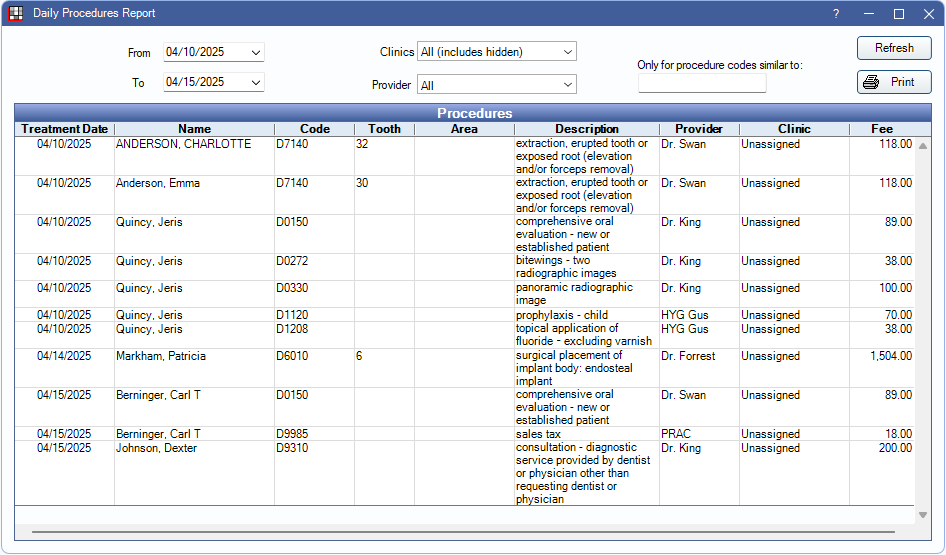
By default, this report is blank upon opening. Enter filter criteria, then click Refresh to view data.
From / To: Determine the start and stop dates to view completed procedures.
Clinics: Select specific clinics or select All (includes hidden) to include all clinics, including those marked hidden.
- Filters by clinic assigned to procedure.
- If user is restricted to specific clinics, only accessible clinics are listed. When selecting All (includes hidden), results include all clinics user has access to, including those marked hidden. Results do not include clinics user is restricted from or procedures not assigned to a clinic.
Provider: Select the providers to include or select All to include all providers, including those marked Hidden on Reports.
- Filters by treating provider (i.e., provider assigned to Procedure).
- Users without the Daily - View All Providers permission only see the provider associated with their User in the Providers list.
- Users must have the Daily - View All Providers to access the full provider list and utilize the All option.
- To exclude hidden providers from the report, manually select visible providers from the list.
Only for procedure codes similar to: Limit the results by procedure code. Enter a complete code (e.g., D123) or a partial code to find similar codes (e.g., D12).
Print: Print the report using the criteria selected in the filters.
Individual Procedures
Click Refresh to update report results based on the currently selected filters. The Individual Procedures grid displays results matching the filter criteria. Click a column title to sort results in ascending or descending order. The following is a description of each report column:
- Treatment Date: The procedure date.
- Name: Last name and first name of the patient associated with the procedure.
- Code: Procedure code.
- Tooth: Procedure tooth number, if applicable.
- Area: Procedure treatment area (e.g., MOD, UL, etc.), if applicable.
- Description: Description of the procedure code.
- Provider: Provider assigned to the procedure (i.e., treating provider).
- Clinic: Only displays when the Clinics feature is enabled. Clinic assigned to the procedure. This may differ from the patient's assigned clinic.
- Fee: Procedure amount (i.e., fee billed to the patient's account).
Right-click options:
- Go to Chart: Select the patient.
- Copy Cell Text: Copy text in the specified cell.
- Copy Row: Copy all text in the specified row.
Print Report
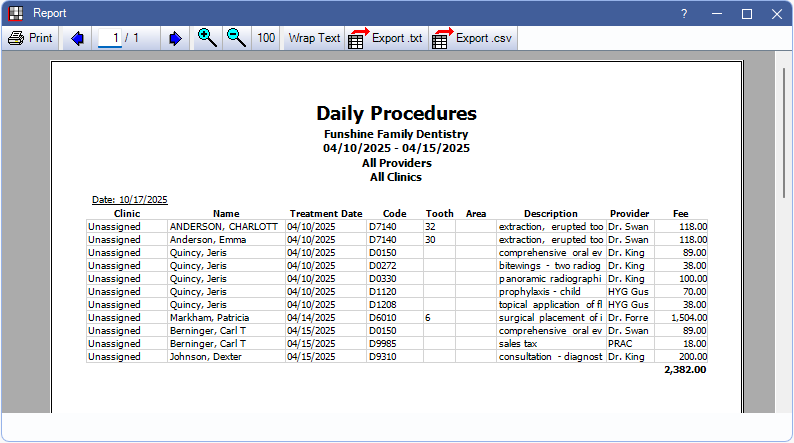
Click Print to launch a print preview of the report results. For a description of toolbar buttons, see Complex Report System. The data columns on the print preview are the same as the report grid listed in the previous sections.