

Search
Specialist Referrals Overview
See Overviews.
Specialist offices using Open Dental often need to send referral letters to a patient's referring dentist. There are various ways to handle this in Open Dental.
General Setup
Regardless of how Referral Letters are generated, all specialists need to set up the referral system.
Referral List
Enter all known referring practices or providers in the Referral List. Referral sources must exist before they can be associated with a patient.
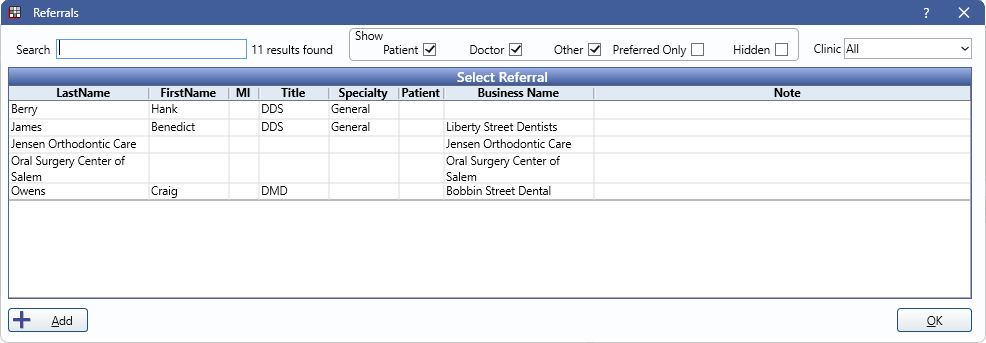
Referrals can be reported on via the Referral Analysis Report or by using a custom query.
Referral Slips
A custom Referral Slip can be created for the specialty office and shared with other Open Dental offices. This makes it easy for other offices to generate referrals to specialty practices.
Referral Letters
There are two options for generating Referral Letters in Open Dental. Consider each option carefully before committing to an option.
Option 1: Referral Letters via SheetsCreate Referral Letters in Sheets. See Referral Letter Layout for details. For each Referral Letter, mark the sheet as Austosave on Change or Import and set an Autosave Image Category in Sheet Def Properties.
Referral Letter sheets show as a line item in the Chart Module, Progress Notes area. Permissions can be set to prevent non-authorized users from making edits or deleting letters. Additionally, edits to Referral Letters are logged in the Audit Trail. Each change to a Referral Letter is saved to the Imaging Module when marked as Autosave. Finally, Referral Letter sheets can be signed by the provider for additional security.
Option 2: Referral Letters via Chart Letters
Create Referral Letters using Chart Letters. Chart Letters are designed and edited using Microsoft Word. Create a Referral Chart Letter in Letter Merge. Start by creating a Word template with the necessary patient fields.
Chart Letters show as a line item in the Chart Module, Progress Notes area. Each edit to a Chart Letter is logged in the Chart Module Audit. Changes to Chart Letters must happen by accessing the Word document from Open Dental. If a letter is edited by accessing the document outside of Open Dental, the version will be marked as Not Matched in Chart Letter Properties. Chart Letters can be signed by the provider and manually saved to the Imaging Module as desired. Images can be easily added to a document as needed for a patient. Chart Letters have limited patient fields available and are not limited by Open Dental permissions.
Secure Email
Secure Email allows offices to send and receive email messages in a secure manner. This is useful for sending Referral Letters to the referring practice. See Secure Email: Workflow.
Patient Steps
If a patient is referred to you:
- Create the patient in Open Dental.
- Add the referring provider as a Referral in the Family Module.
- Scan the Referral Slip to the patient's Imaging Module.
- Schedule the initial consult and conduct the consult with the patient.
- Generate the initial Referral Letter for the consult.
- If using Referral Letters via Sheets, see Referral Letter.
- If using Referral Letters via Chart Letters, generate the letter in Letter Merge.
- Send the Referral Letter via Secure Email, or print the letter to mail it.
- See the patient for treatment.
- Send an additional Referral Letter to the referring provider with details on what was done and what the referring provider needs to do.