

Search
Fees Import
Fees can be imported into fee schedules (e.g., if insurance sends a new fee schedule).
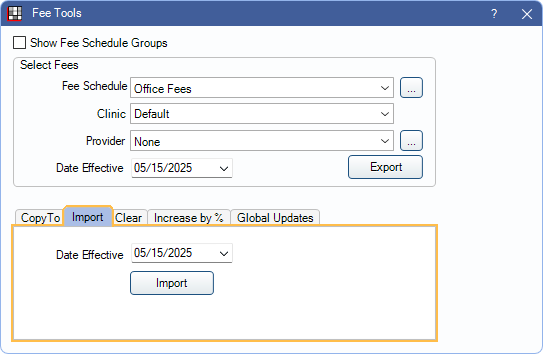
In Fee Tools, at the bottom, is the Import tab.
Important Information:
- For fees to import, the corresponding code must already exist in the Procedure Codes list. Importing codes and fees does not automatically add codes. See Add Procedure Code for instructions on creating new procedure codes.
- Fees can also be manually entered and edited in a fee schedule (create the fee schedule, nine-key in the fees).
- Often the fee schedules provided to offices have no standard format. Depending on the format, the file may need to be edited or converted before it can be imported. See File Requirements for more information.
Importing Fees
As a preventative measure, make a backup copy of existing fees before importing. See Fees Copy for detailed instructions.
Import the fees into the original fee schedule:
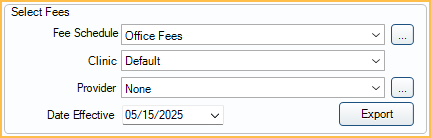
- In the Select Fees are of the Fee Tools window, select the fee schedule to import into.
- Selecting only a fee schedule will import into the default (i.e., global) fee schedule.
- Select a Provider and/or Clinic to further narrow where fees are imported. See Clinic or Provider-Specific Fees for more details.
- Provider or Clinic can only be selected for Fee Schedules with Use Global Fees unchecked.
- In the Select Fees area, a Date Effective does not need to be selected.
- (Optional) To delete all existing fees in the fee schedule to start with a blank fee schedule, go to the Clear tab and click Clear.
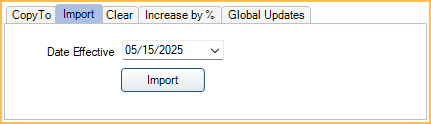
- In the Import area, set the Date Effective. Set the date the imported fees will take effect. To make fees effective immediately, enter today's date. If a future date is entered, fees will take effect on the applicable date.
- Click Import.
- A warning suggesting to clear fees and advising fees will be overwritten is shown. Click OK to proceed. Click Cancel to stop the import and make changes before proceeding if needed.
- From the File Explorer, select the file to be imported. See File Requirements for additional information.
- Once the import is successful, click OK to exit the message.
- The Fee Schedule Edit Note opens. Optional notes can be added about the imported fees. Click Save to add notes or click Delete if no notes are needed.
If fees were cleared before importing, only the imported fees remain. If fees were not cleared before import, any existing fees are overwritten with imported fees and procedure codes that did not contain a fee in the import remain unchanged.
If a future effective date was applied, fees will be applied to new procedures or when updating fees starting on the Date Effective. To apply updated fees to treatment planned procedures, see Fees Update.
File Requirements
Fees must be saved as a tab-delimited file (text file is preferred). To see an example of the correct file format, Export Fees. When opened with Notepad, it looks similar to the screenshot shown below: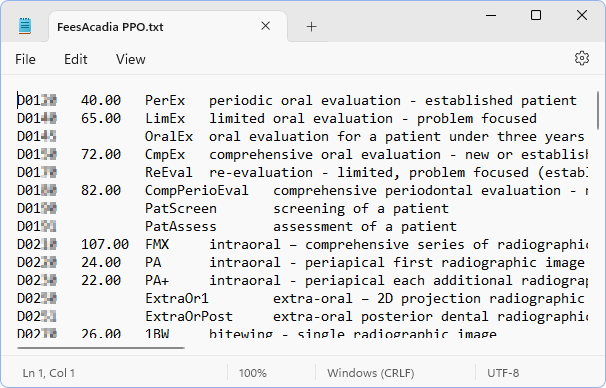
- The first column of the imported file must contain the procedure code; the second column must contain the fee without monetary symbols or extra characters/spaces. Decimals are not considered extra characters.
- Columns must be separated by tab.
- Columns containing additional information (e.g., abbreviation or description) are not required and are ignored during import.
- Fee sort order does not matter.
- Close the file before importing the fees.