
Help

Search
Fees Increase
Use the Fees Increase tool to incrementally increase or decrease fees in a fee schedule by a percentage.
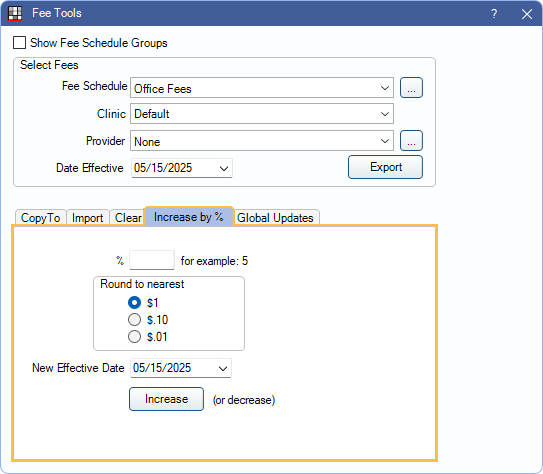
In Fee Tools, at the bottom, is the Increase by % tab.
 See our Quick Tip video: Updating Your UCR (Office) Fees
Increasing (or Decreasing) Fees
- Create a backup copy of the existing fee schedule as a preventative measure. See Fees Copy for these steps.
- In the Select Fees area of the Fee Tools window, choose the details for the fees that will be changed. Only fees matching the selected criteria are changed.
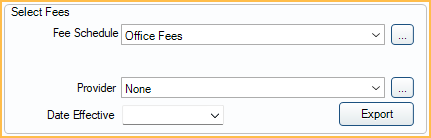
- Fee Schedule: Choose the fee schedule that changes will be applied to.
- Clinic/Provider: If fee changes should only be applied to a specific clinic or provider, choose the applicable options. These options are only enabled if the selected fee schedule allows Clinic and Provider-Specific Fees (Use Global Fees is unchecked). If no provider or clinic is selected, changes are applied to the default fees.
- Date Effective: Enter a date to determine which fees the increase (or decrease) is applied to. To apply the change to the currently effective fees, enter today's date. If another date is entered, new fees are calculated based on the fees effective as of the entered date.
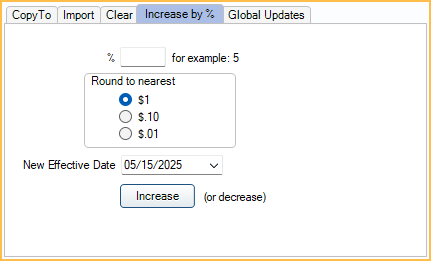
- In the Increase by % tab, set the options for changing fees.
- %: Enter a number to indicate what percentage is used to calculate new fees. Positive and negative numbers are allowed. A positive number increases fees; a negative number decreases fees.
- Round to nearest: Choose how fees are rounded. Fees are rounded up. We recommend rounding to the nearest $1.
- New Effective Date: Set the date the fee changes will take effect. To make fees effective immediately, enter today's date. If a future date is entered, fees will take effect on the applicable date.
- Click Increase.
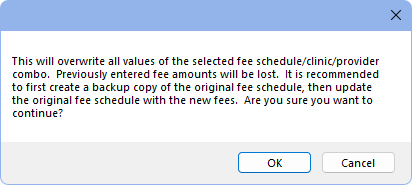
- A warning that all fees meeting the Select Fees criteria will be overwritten is shown. Click OK to apply the fee changes. Click Cancel to return to the Fee Tools window without applying changes.
Additional Steps
If the fees updated as intended take the following additional steps as needed
Hide any backup fee schedule (with old fees):
- From Fee Schedules, double-click the old fee schedule.
- Check Hidden.
- Click Save.
Apply updated fees to treatment planned procedures: see Fees Update.
Update Discount Plan Fee Schedules: For offices using Discount Plans, if a fee increase (or decrease) was made to a UCR or Office fee schedule, this does not affect any other fee schedules. Fee schedules attached to discount plans must be updated separately to ensure discounts are still accurate.
Note: If new fee schedules are added, instead of making a backup and increasing fees in the original, fee schedule selections throughout the program (e.g., insurance plans, providers, etc.) may need to be updated.