
Help

Search
eForm Medication List Edit
Use eForm Medication List settings to customize how the medication list behaves and interacts when importing information.
In eForm Def Edit, click Medication List.
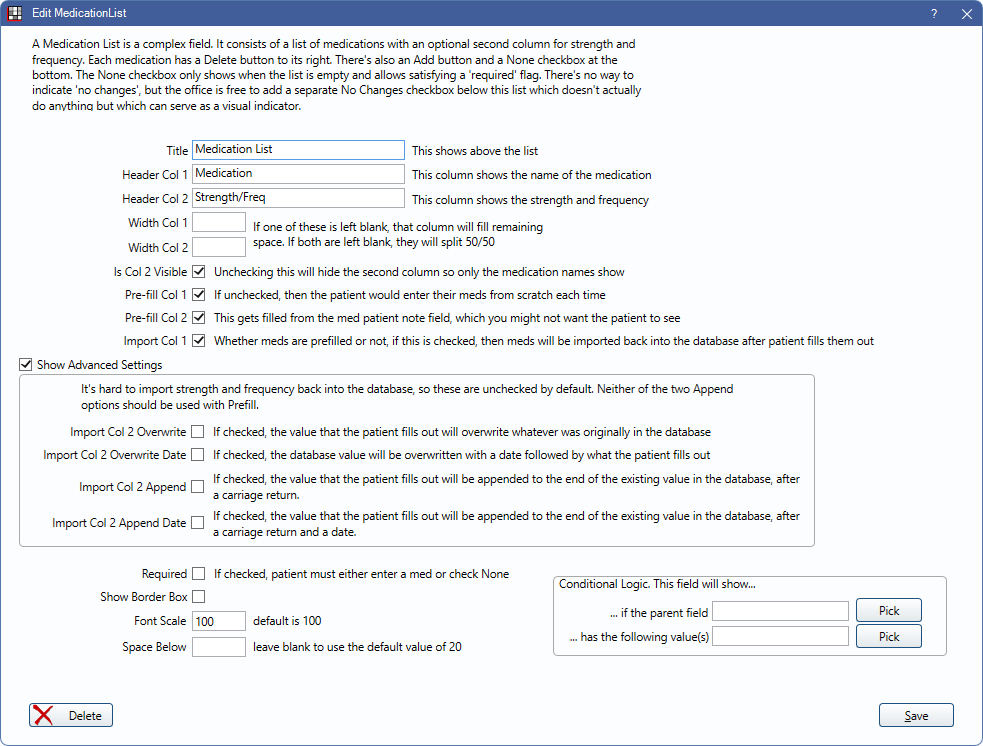
Medication lists display in a table on eForms. Use these settings to determine the look and behavior.
- Title: Text that displays above the entire list (e.g., "Enter current medications here").
- Header Col 1: Header that displays above the first column where medications are listed. Typically Medication.
- Header Col 2: Header that displays above the second column where dosage and frequencies are listed. Typically Strength/Freq.
- Width Col 1 / Width Col 2: Width of the first and second columns. When one column has a value, the other column fills the remaining space. If both columns are left blank, the columns split equally.
- Is Col 2 Visible: Check to display the second column.
- Pre-fill Col 1: Check to pre-fill the medication list from previous forms. Uncheck to require patients enter their medications each time.
- Pre-fill Col 2: Check to pre-fill the strength and frequency column from the Notes for this Patient field in the Medication for Patient window.
- Import Col 1: Check to import medications automatically. If unchecked, medications are not imported into the Patient Chart.
Advanced Settings
Advanced Settings affect import options for strength and frequency. These are unchecked by default. Append options should not be used with pre-fill.
- Show Advanced Settings: Check to show advanced settings.
- Import Col 2 Overwrite: Check to overwrite the medications for patient note when importing.
- Import Col 2 Overwrite Date: Check to overwrite the medications for patient note with a date when importing.
- Import Col 2 Append: Check to add a new line to the medications for patient note when importing.
- Import Col 2 Append Date: Checked to add a new line to the medications for patient note with a date when importing.
Display Options
- Required: Check to require this field be entered by the patient.
- Show Border Box: Check to include a light gray border around the field.
- Font Scale: Font is scaled to the device the eForm is viewed on.
- Space Below: The amount of space below each field on a form. Overrides the amount set in eForm Setup and eForm Def Properties.
Conditional Logic: This field will show...
- ... if the parent field: Click Pick to open the eForm Field Picker window.
- ... has the following value(s): Click Pick to select a value from the parent field (e.g., checked, unchecked).
Language Translation
When editing a translated eForm, the language translation fields display. For more information on editing translations, see eForm Language Translation.