

Search
eForm Field Picker
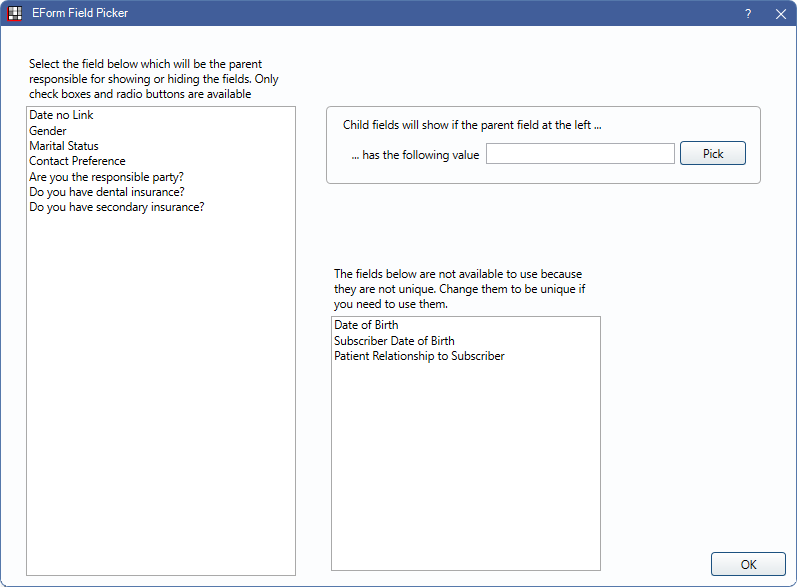
The eForm Field Picker sets the conditional logic for various eForm fields.
In eForm Def Edit, click Entire Page.
Alternatively,
- In eForm Def Edit, click highlight one or more fields, then click Multiple Fields.
- In an eForm field, under Conditional Logic, click Pick.
Conditional logic makes data entry easier for patients by only showing patients the data they need to complete. For example, a patient without insurance will not see fields for subscriber details.
Conditional fields are split between parent fields and child fields. Parent fields determine if the child fields display, however the logic is set only on the child fields.
Setting Logic
To set conditional logic on an individual field, double-click into the field.
To set conditional logic for multiple fields, add the fields to the designer, then select all necessary fields and click Multiple Fields.
To set conditional logic for all fields on a page, add the page and fields to the designer, then click Entire Page.
Logic Selection
Select the field below...: Select the field which is the parent responsible for showing or hiding the fields. Only check boxes and radio buttons are available. This list is determined by unique fields already added to the eForm.
... has the following value: Click Pick to select a value for the parent field (e.g., Yes, No, Checked, Unchecked). Child fields only show if the parent field has the selected value.
The fields below are not available: Lists fields that are not unique and are not available to use as a parent field.
Additional Details
When a parent field is in use, a notice displays at the bottom of the field with the number of child fields present.

View: Click to view the list of Conditional Child Fields.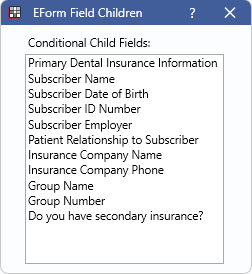
When setting up an eForm, parent fields display (CND) in red in all capitals.

Child fields display (cnd) in red in all lowercase.
