
Help

Search
Dental School Students
Dental School students are added as providers to each class.
In Dental School Providers, select the Students radio button, then click Add.
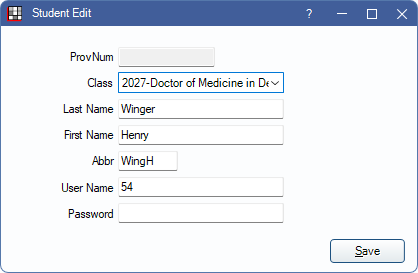
Students are providers who can use Open Dental for charting but may have restricted security permissions. Complete all Dental School setup before adding students.
Enter the student information:
- ProvNum: Automatically generated once the student is saved. Cannot be changed.
- Class: The student's Dental School Class. Click the dropdown to change.
- Last Name/First Name: The student's name.
- Abbr: Automatically generated using the first four characters of the last name and first initial of first name. Can be changed and does not need to be unique.
- User Name: The user name the student uses to Log On to Open Dental. Defaults to the student's ProvNum but can be manually changed.
- Password: Enter a password the student uses to log on to Open Dental. When editing an existing student, the password field is blank. To keep the password the same, leave it blank.
- Students can change their password when they log on from Main Menu, File, Change Password.
Click Save to keep changes or add the new student. New students are automatically assigned to the default student user group set in Dental School Setup.
To add instructors and other providers, see Dental School Instructors and Dental School Providers.