

Search
Fill out Student Evaluations
Instructors can fill evaluations for Dental School students.
In Evaluations, click Add.
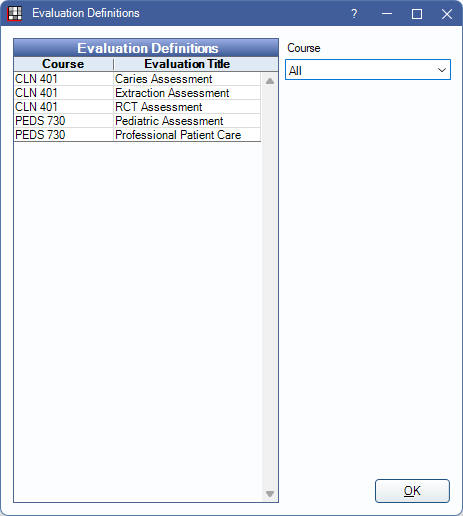
Only Dental School Instructors can fill out a student evaluation. Users with the Admin Eval Edit permission can view or edit existing evaluations. Before creating an evaluation for a student, add Evaluation Definitions in Dental School Evaluation Setup.
Use the Course filter to limit the displayed evaluations by course.
Double-click an evaluation definition to begin.
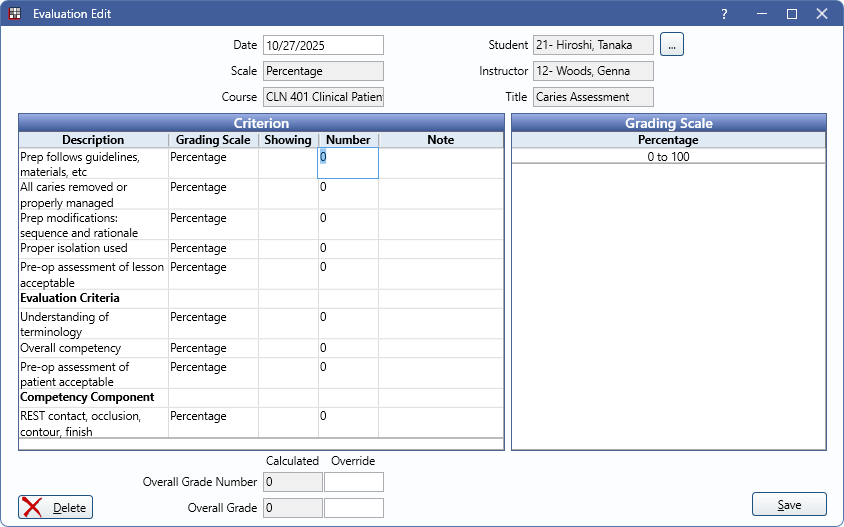
Enter general evaluation information.
- Date: Defaults to today's date, but can be manually changed.
- Student: Click [...], then-double click the student to associate with the evaluation.
- Scale: Displays the Dental School Grading Scale associated with the evaluation.
- Course: The Dental School Course associated with the evaluation.
- Instructor: The instructor who added the evaluation. This is automatically assigned based on the logged-on user.
- Title: The evaluation definition title.
Criterion: The grid shows all criteria attached to the evaluation.
- Description and Grading Scale are automatically populated based on the evaluation definition.
- If a criteria's grading scale is Pick List
- Click on a Criterion row on and possible values displays in the Grading Scale.
- Click on a Grading Scale value to automatically populate the Showing and Number fields or type the value in the Number cell. Invalid numbers are not saved.
- If a criteria's grading scale is Weighted:
- Click on a Criterion row and the maximum point value displays in the Grading Scale.
- Click in the Number cell to enter the student's points.
- If grading scale is percentage:
- The Grading Scale displays the percentage range but does not offer a selection.
- Click in the Number cell to enter the student's percentage.
- Enter any notes by clicking in the Note cell.
- All percentage criteria are based on 0 - 100.
- Click in the Number cell to enter the student's percentage.
Grading Scale: Displays the available options for the evaluation's Grading Scale.
As evaluation numbers are entered, the Overall Grade Number and Overall Grade fields at the bottom are automatically updated using the evaluation's Grading Scale. To override an overall calculation, enter the value in the white boxes to the right of each field.
Click Save to add the evaluation or keep changes.