
Help

Search
Chat Settings
Determine chat settings.
In Chat, click the user icon, Settings
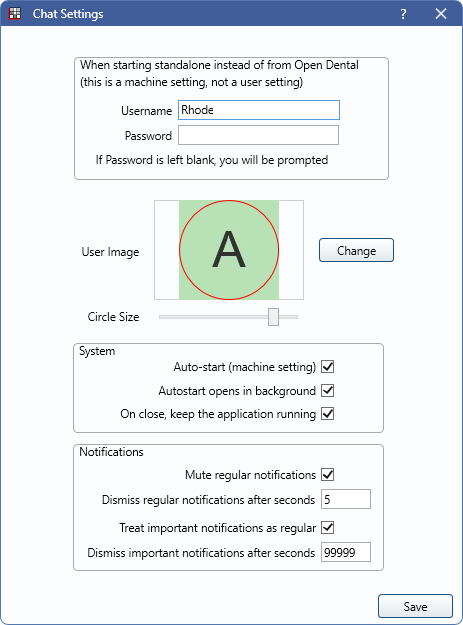
Machine Settings
Chat can remain open even when Open Dental is closed.
- Username: When launched from outside Open Dental, this is the user automatically logged into Chat.
- Password: Enter the user's password. If empty, the user is prompted to log in.
User Settings
These settings are specific to the logged in user.
- User Image: The image used when chatting with other users. Defaults to the first letter of the logged in user. Click Change to import a different image.
- Circle Size: Change the circle size and move the circle to the preferred place on the image. Circle parts outside the image show white in the user image when used in chats.
System Settings
- Auto-start (machine setting): Automatically start Chat when logging onto workstation.
- Autostart opens in background: Open the autostart in the background.
- On close, keep the application running: Keep the Chat application open in the background, even when manually closed.
Notifications
- Mute regular notifications: Mute notifications not marked as Important.
- Dismiss regular notifications after seconds: Enter the number of seconds to leave a notification before it disappears. Defaults to 5.
- Treat important notifications as regular: When checked, notifications marked as Important are treated as regular notifications. Also mutes these notifications if Mute regular notifications is also checked.
- Dismiss important notifications after seconds: Enter the number of seconds to leave a notification marked as Important. Defaults to 99,999 to ensure users view the message.
Other Settings
Determine a chat server in Preferences, Server Connections - General category.