Help

Search
CareCredit Self-Service Payment
Send payment links for patients to complete CareCredit transactions from their own device.
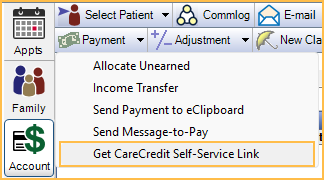
In the Account Module, click the Payment dropdown, select Get CareCredit Self-Service Link.
See CareCredit Payment for instructions on processing payments in office.
Patients must be existing CareCredit cardholders to be able to use this feature.
Send Purchase Transaction to Patient Device
- In the Account Module, click the Payment dropdown and select Get CareCredit Self-Service Link.
- Enter the entire treatment amount, and click OK to launch the CareCredit Transaction Portal in a browser.
- Though CareCredit deducts a processing fee, the payment should be entered as the full amount the patient agreed to. The CareCredit Merchant Fee is noted in the payment Note and Surcharge Fee field once the payment is processed.
- The payment is automatically adjusted for the merchant fee and a merchant fee adjustment is created if a Merchant Fee Adj Type is set in CareCredit Setup.
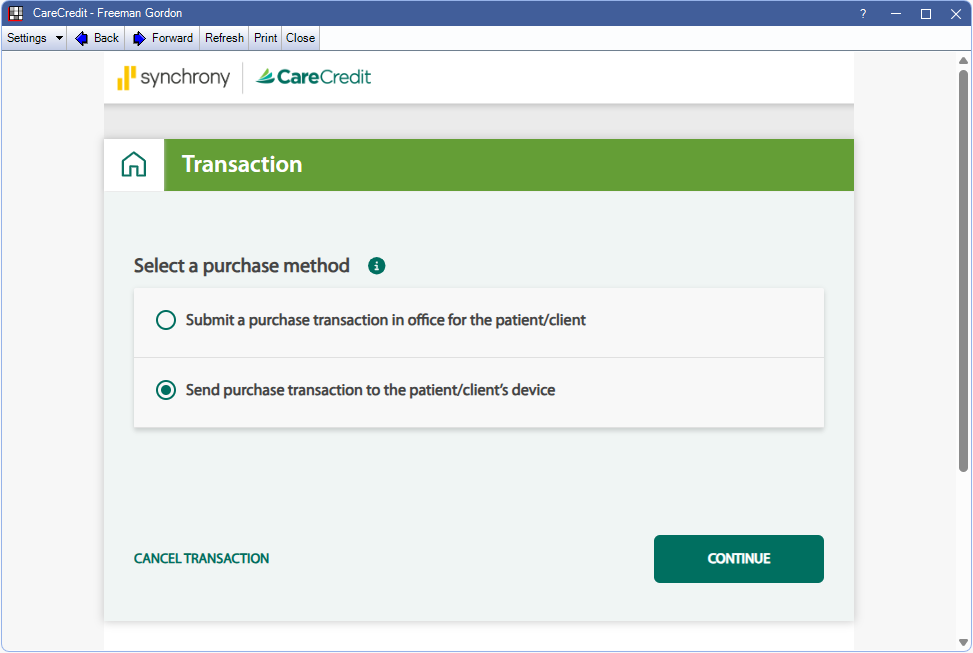
- In the CareCredit Transaction Portal, click Send purchase transaction to the patient/client's device then click Continue.
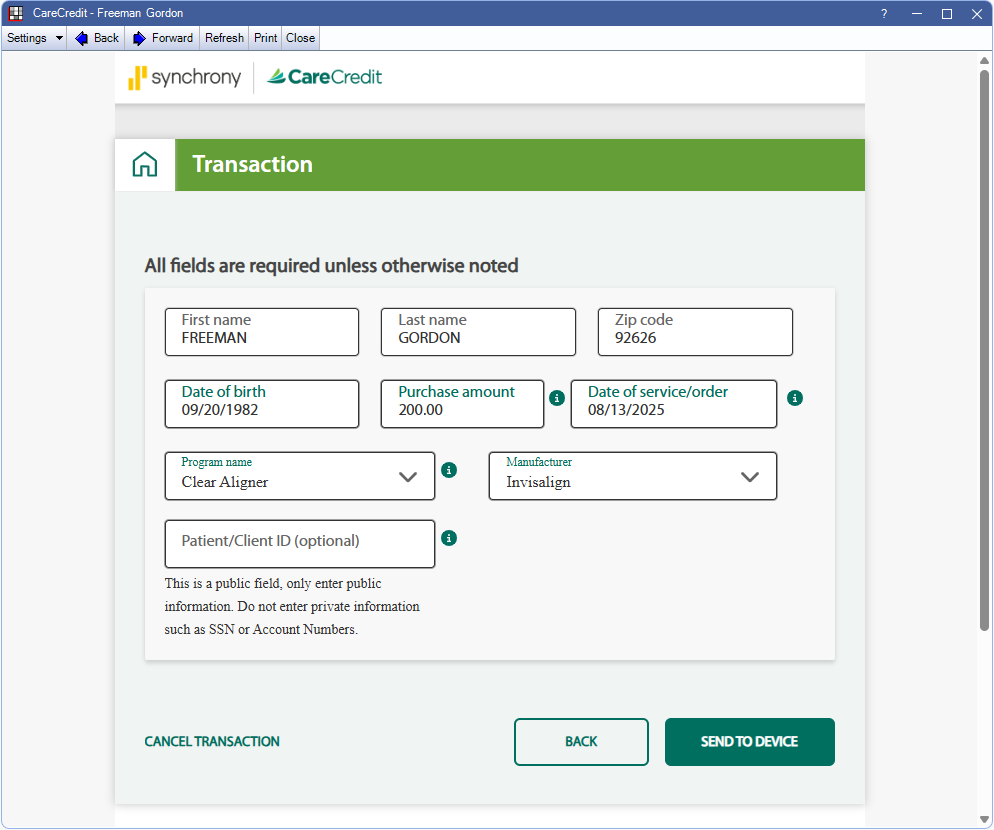
- Verify the Purchase Amount, select a Program name and Manufacturer, if applicable. Click Send to Device.
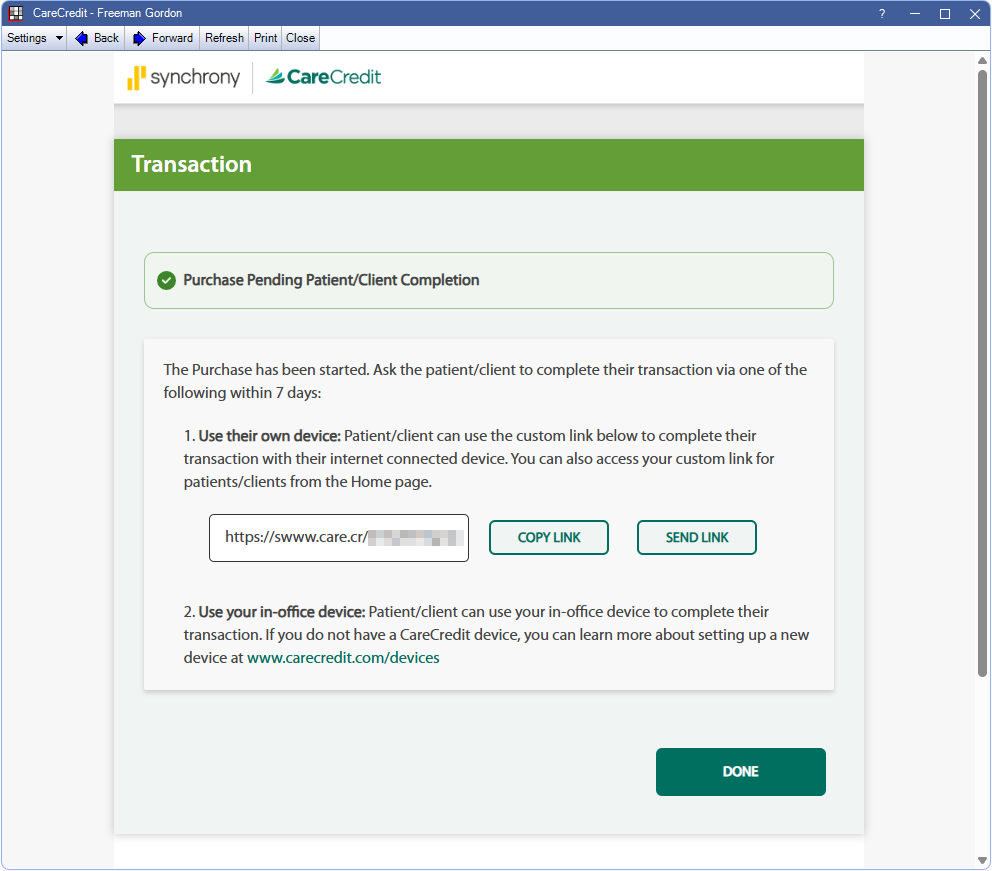
- A custom link is generated and can be sent to the patient to process the transaction from their own device. Click Copy Link to copy the link to the clipboard. Click Send Link to send the link via text or email, or click Done to exit the window.
- When Send Link is selected, a panel opens to choose whether to send the link via text message or email. Confirm the email address or phone number, check the acknowledgment, then click Send.
- Text messages are sent from Synchrony, and not from Open Dental's Integrated Texting Feature.
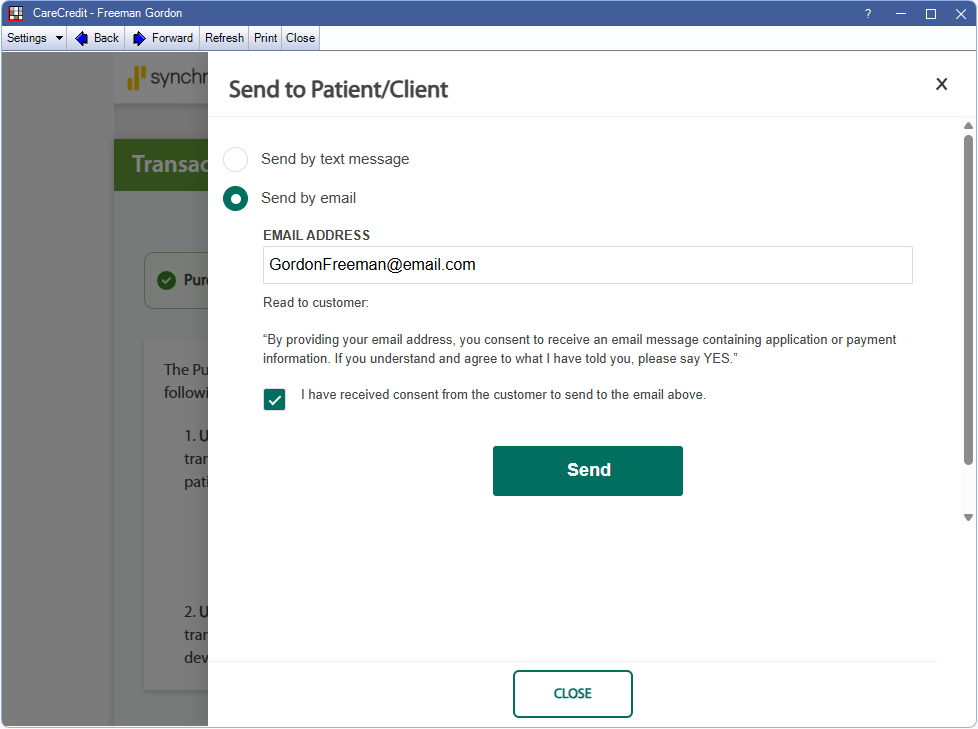
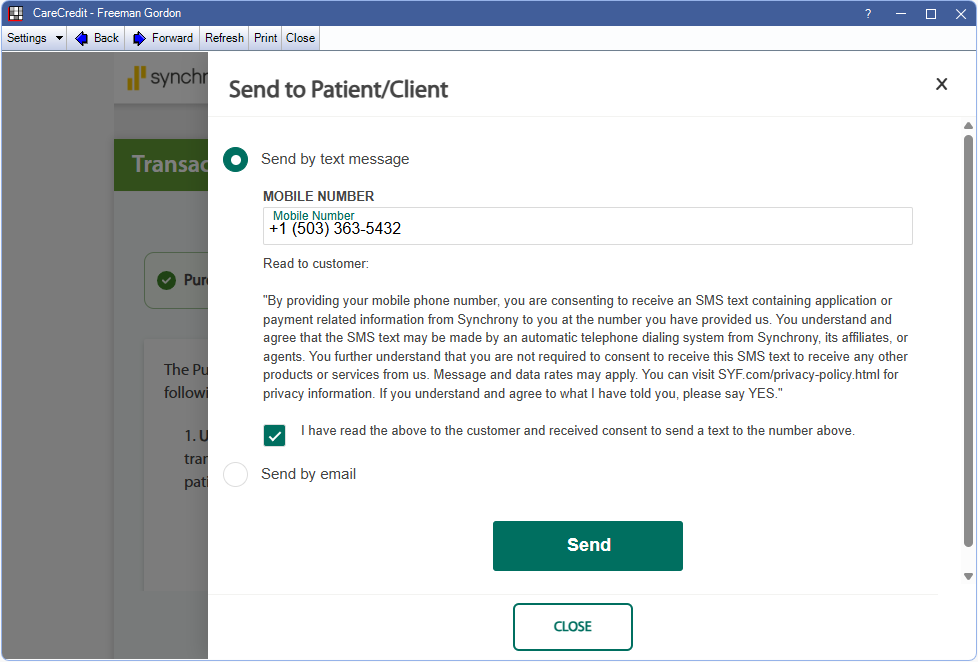
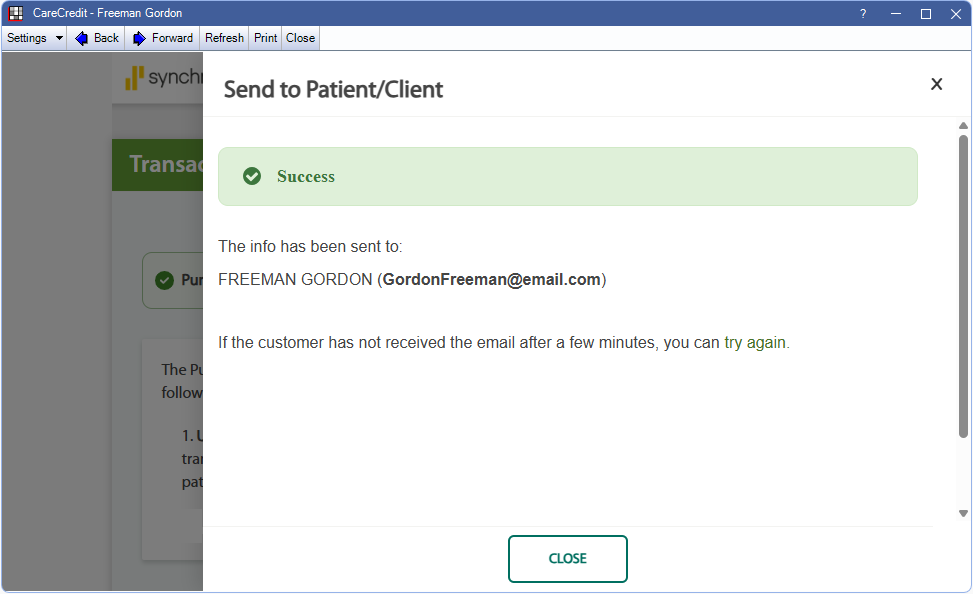
- Patient has successfully been sent the link via the specified method. The patient can follow the link and process the transaction on their own device. Click Try again go back to the previous page and send the link again. Click Close to exit the window.
Once the patient makes a payment from their device, a new payment is automatically posted to their account in Open Dental using the payment type set in CareCredit Setup.
What Patient Sees
The following is a description of what the patient sees when they receive a CareCredit Self-Service Link.
- Patient receives email or text message with a link to make a payment with CareCredit.
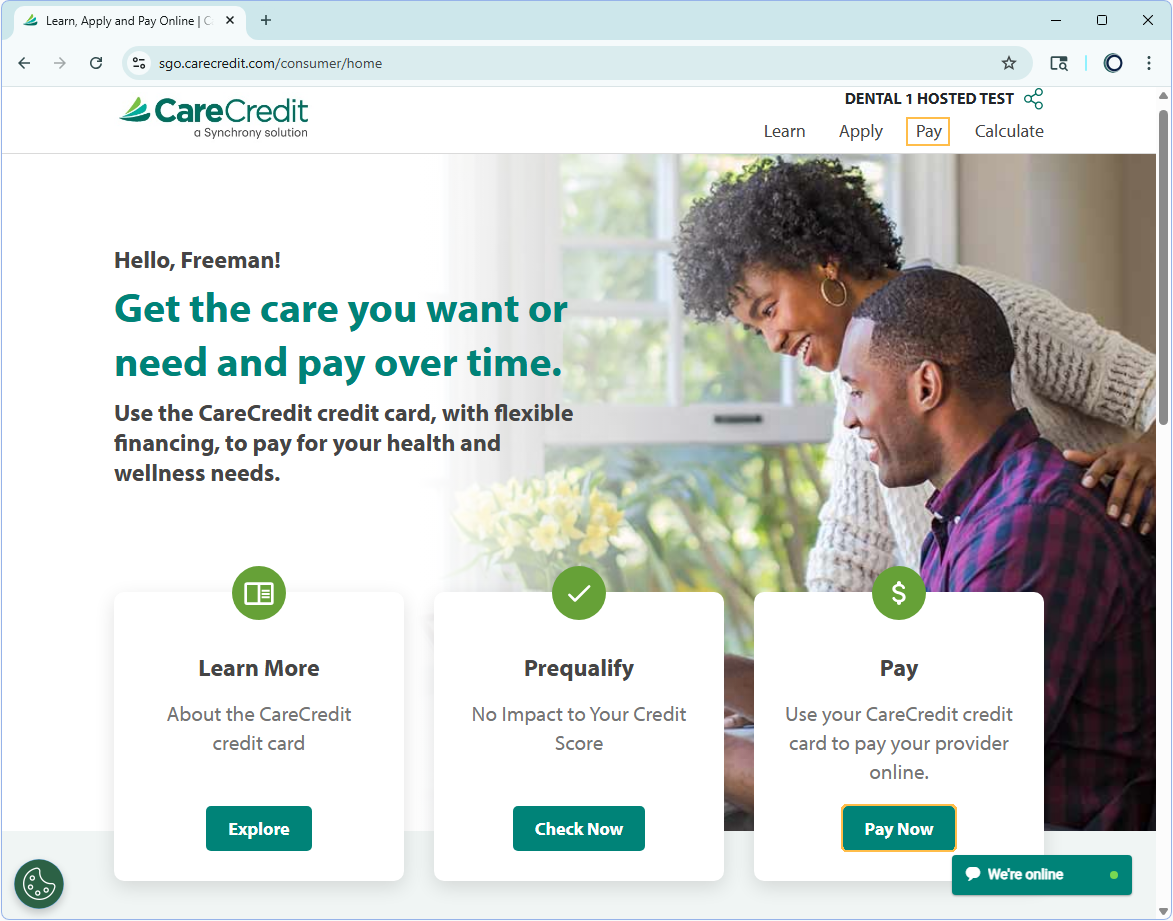
- They are brought to the CareCredit page where they can select Pay or Pay Now.
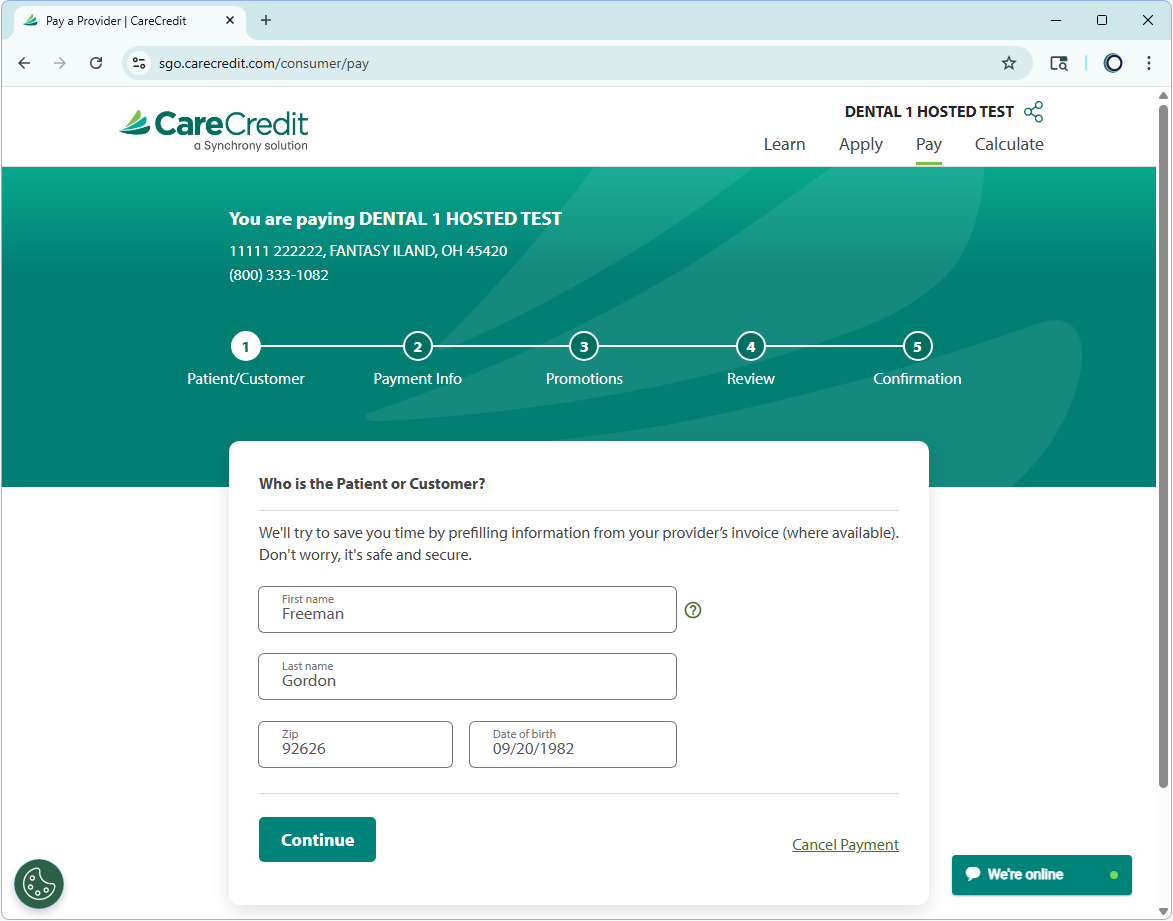
- Patient enters their name, zip code, and date of birth.
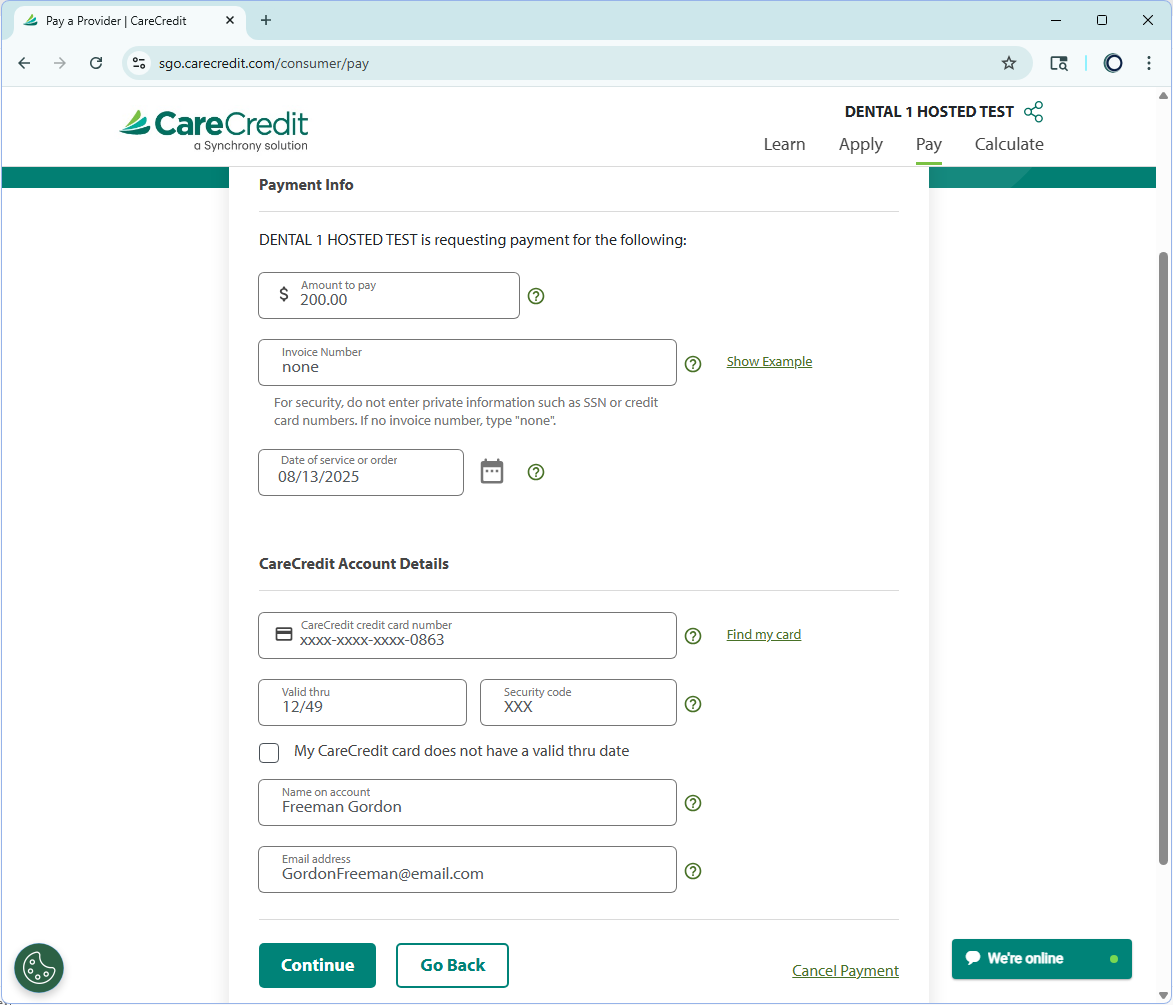
- Payment information is entered.
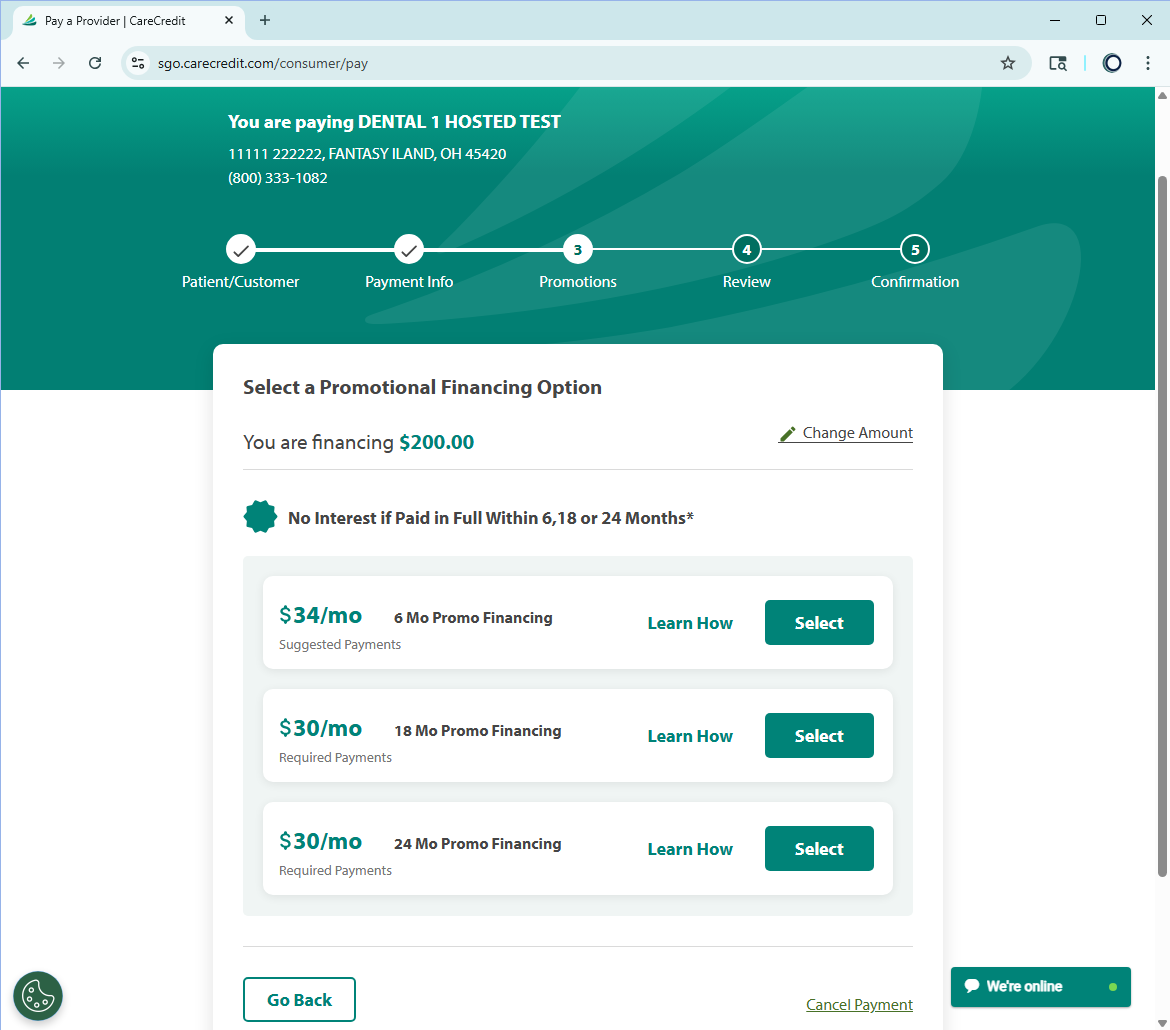
- Finance options are reviewed and selected.
- Payment details are displayed to be reviewed before accepting and submitting the payment.
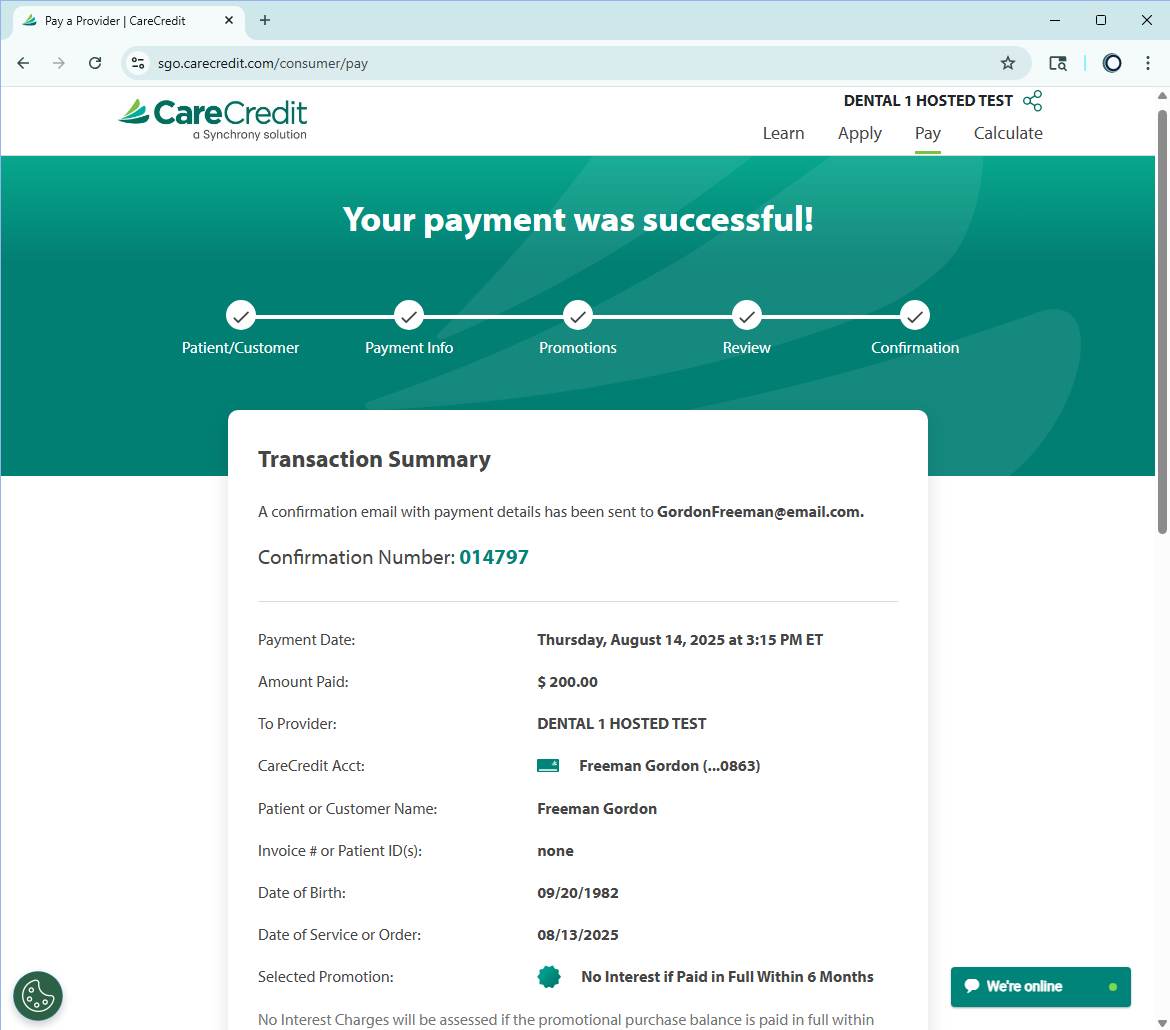
- A confirmation email is sent to the patient once the payment is successfully processed. An option to print a receipt is included on the page.